
Account and login
You need a free Eventwave account to buy tickets. The same account works for eventwave.hr, the scanner app (if an organizer adds you as a scanner) and for organizing your own events.
Registration
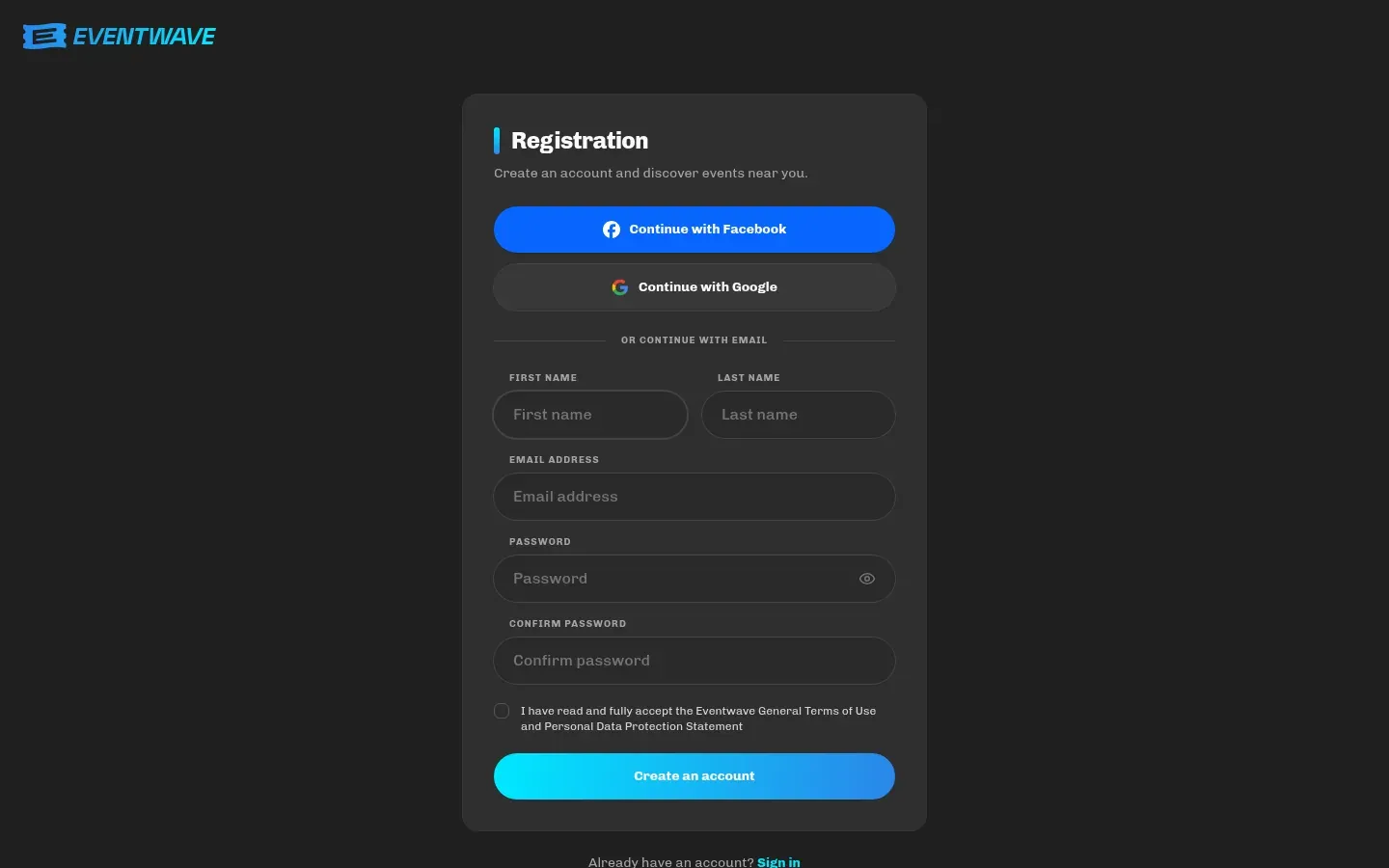
Section titled “Registration”Open Log in → Sign up, or register directly at checkout during a purchase.
- With email: first and last name (up to 50 characters each), email, password and accepting the terms of use.
- Google or Facebook: one click, no password. Tick the terms checkbox first.
The Password Strength meter must reach at least Medium for the registration to go through. Five things are scored (at least 8 characters, an uppercase letter, a lowercase letter, a number and a special character) and you need to satisfy at least three of them.
After registering with email you’ll receive a verification message. Verifying is not a requirement for buying tickets, but until you do, a reminder stays at the top of the page: “Verify your e-mail address by clicking the verification link in the welcome e-mail.” with a Resend button (you can request a new email every 90 seconds).
Logging in
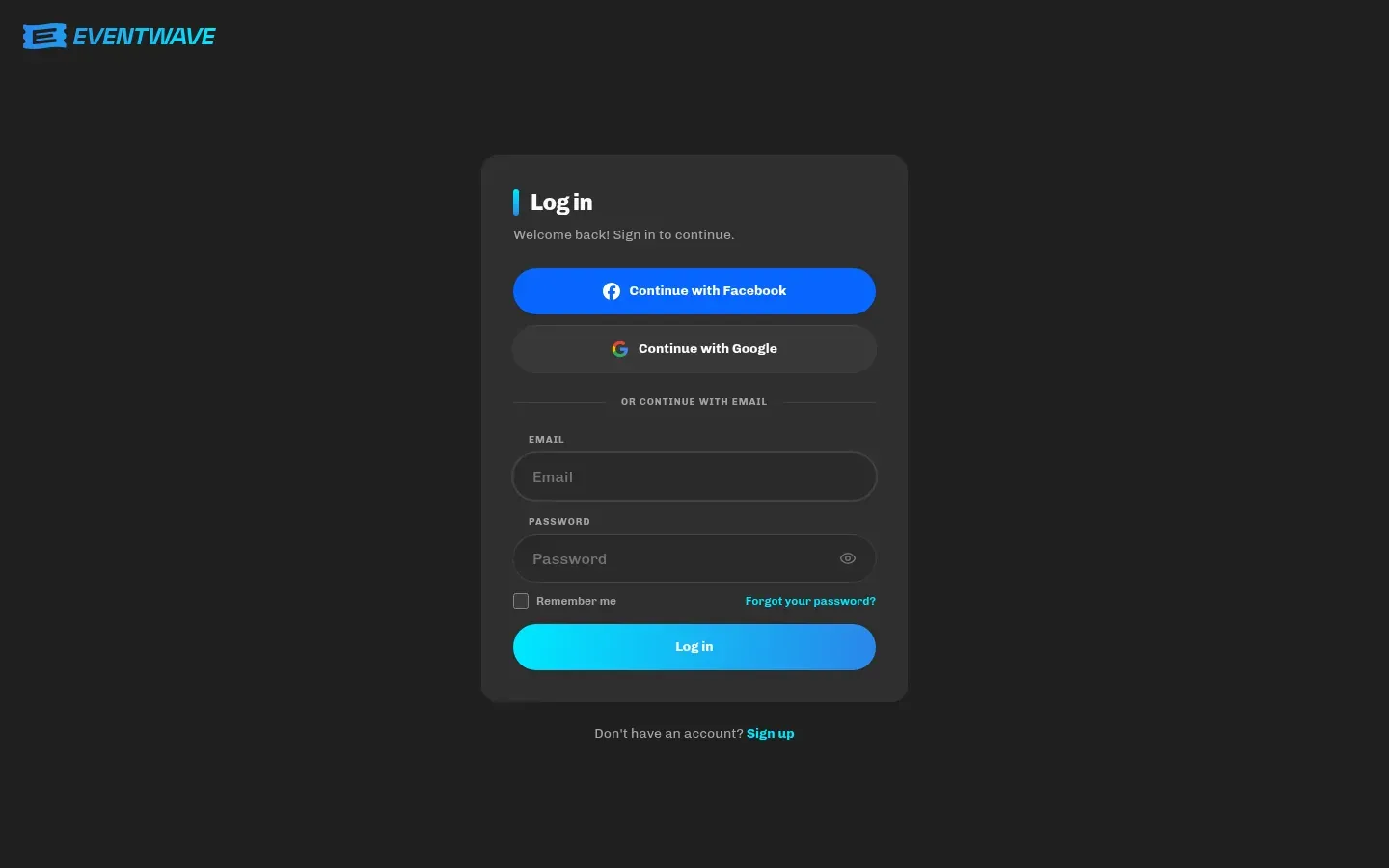
Section titled “Logging in”Email + password (with “Remember me”) or Google/Facebook. After 5 failed attempts in a row, login is temporarily locked: wait as long as the message says and try again.
After a longer period of inactivity you’ll be logged out automatically (“You have been logged out due to inactivity. Please log in again to continue.”). Simply log in again; nothing is lost, neither your tickets nor an order in progress.
Forgotten password
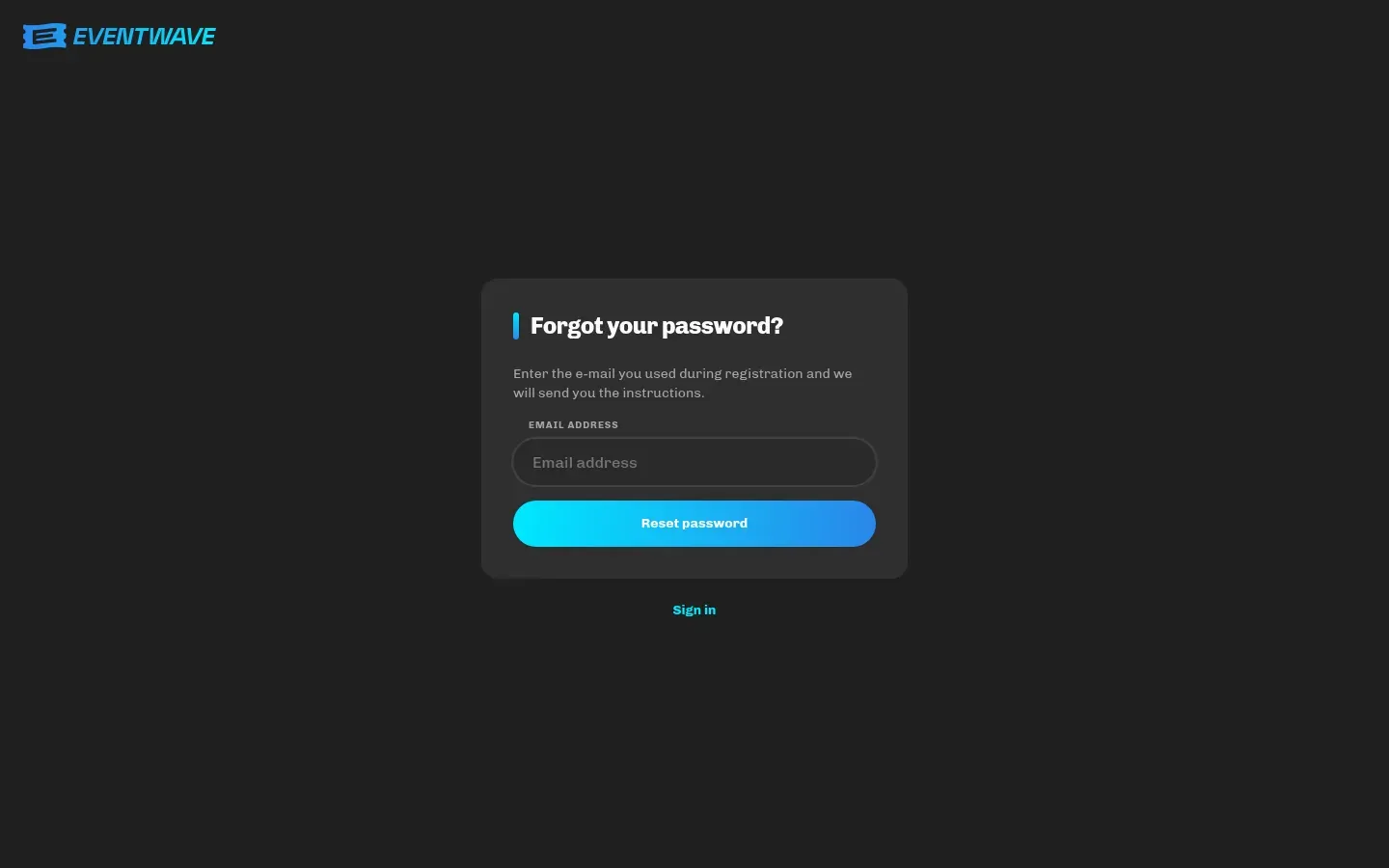
Section titled “Forgotten password”- On the login page, click Forgot your password?
- Enter your email and you’ll receive a message with a link to set a new password. The link is valid for one hour; if it expires, request a new one.
- Set a new password and log in.
If the message doesn’t arrive: check spam/promotions, check that you entered the same address you registered with, and consider whether you registered with Google/Facebook (then there is no password, so log in with that button). Password reset requests are limited to a few per minute, so wait a little between attempts.
My profile
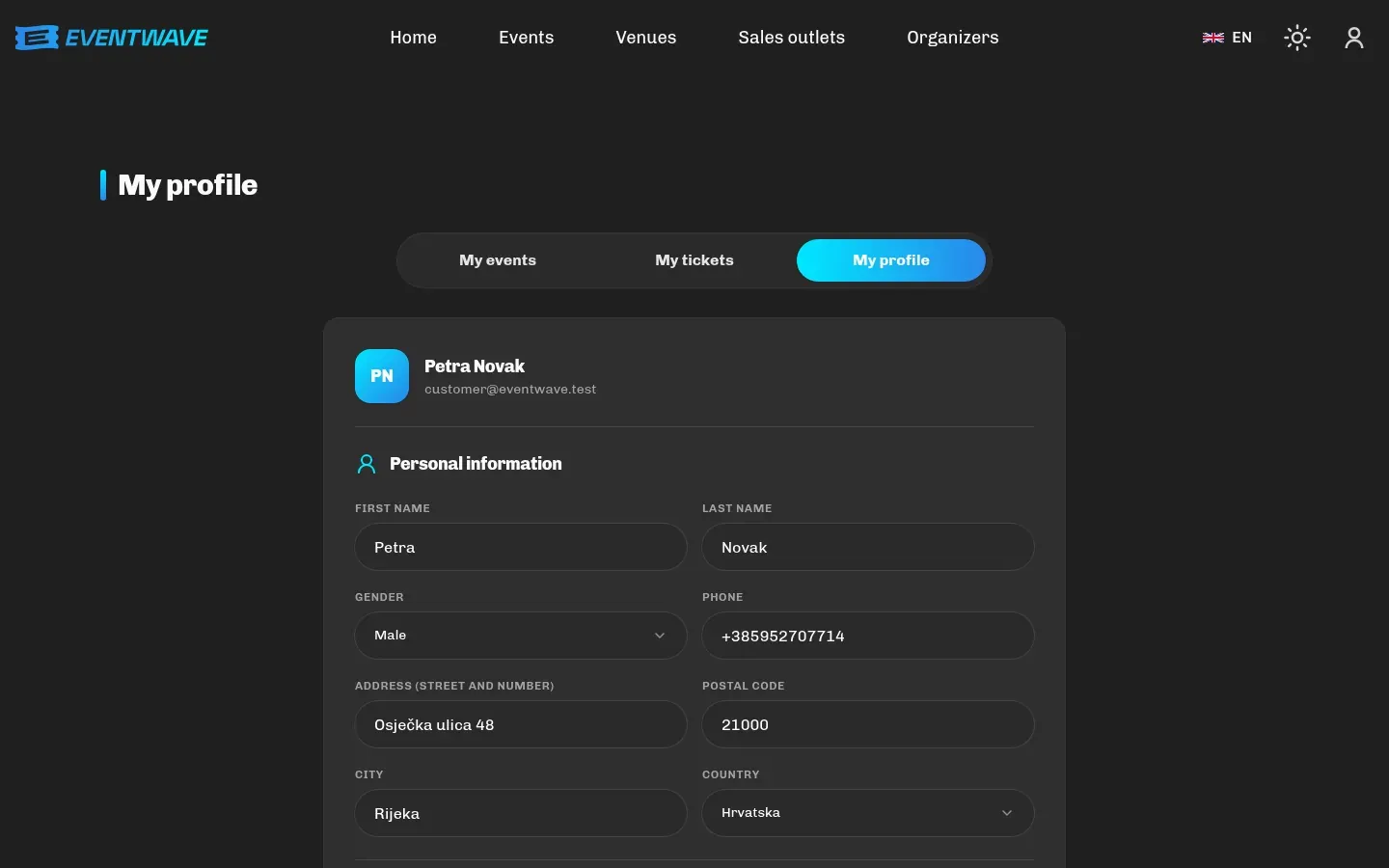
Section titled “My profile”My profile (in the user menu) contains:
- Personal information: first name, last name, gender, phone, address, postal code, city, country. These details fill in the checkout form. If you enter something at checkout that’s missing from your profile, the profile is topped up (existing values are never overwritten).
- Organizer information: visible only to verified organizers (see Become an organizer).
- Change password: enter your current and new password. The change applies immediately, and every other device and browser you were logged in on is logged out automatically (the device you change the password from stays logged in). The same happens when you set a password via the “Forgot your password?” link. If you suspect someone else has access to your account, change your password and contact [email protected] if needed.
Other menu items: My tickets (purchased tickets and receipts) and My events (for organizers).
Newsletter
Section titled “Newsletter”In the page footer you can subscribe to the newsletter (email confirmation, one-click unsubscribe in every message). Independently of that, at checkout you can opt in to notifications from a specific organizer about their similar events.
Deleting your account
Section titled “Deleting your account”Deleting your account is currently not possible from the interface on your own. Send a request from the address you registered with to [email protected]. Keep in mind that deletion removes your access to your data and purchased tickets in the app, so download any PDF tickets you still need beforehand.
Language and theme
Section titled “Language and theme”The interface is available in Croatian (default) and English (/en); switch it in the header, along with the light/dark theme. Tickets, the receipt and emails arrive in the language you used at purchase.