
Installation and requirements
Eventwave Scan is the app door staff use to check ticket QR codes. It is not installed from an app store; it runs in your phone’s browser at:
The app is free and comes with every paid event on Eventwave. There is nothing to configure; all you need is a user account that the organizer has granted scanning rights (see Login and choosing an event).
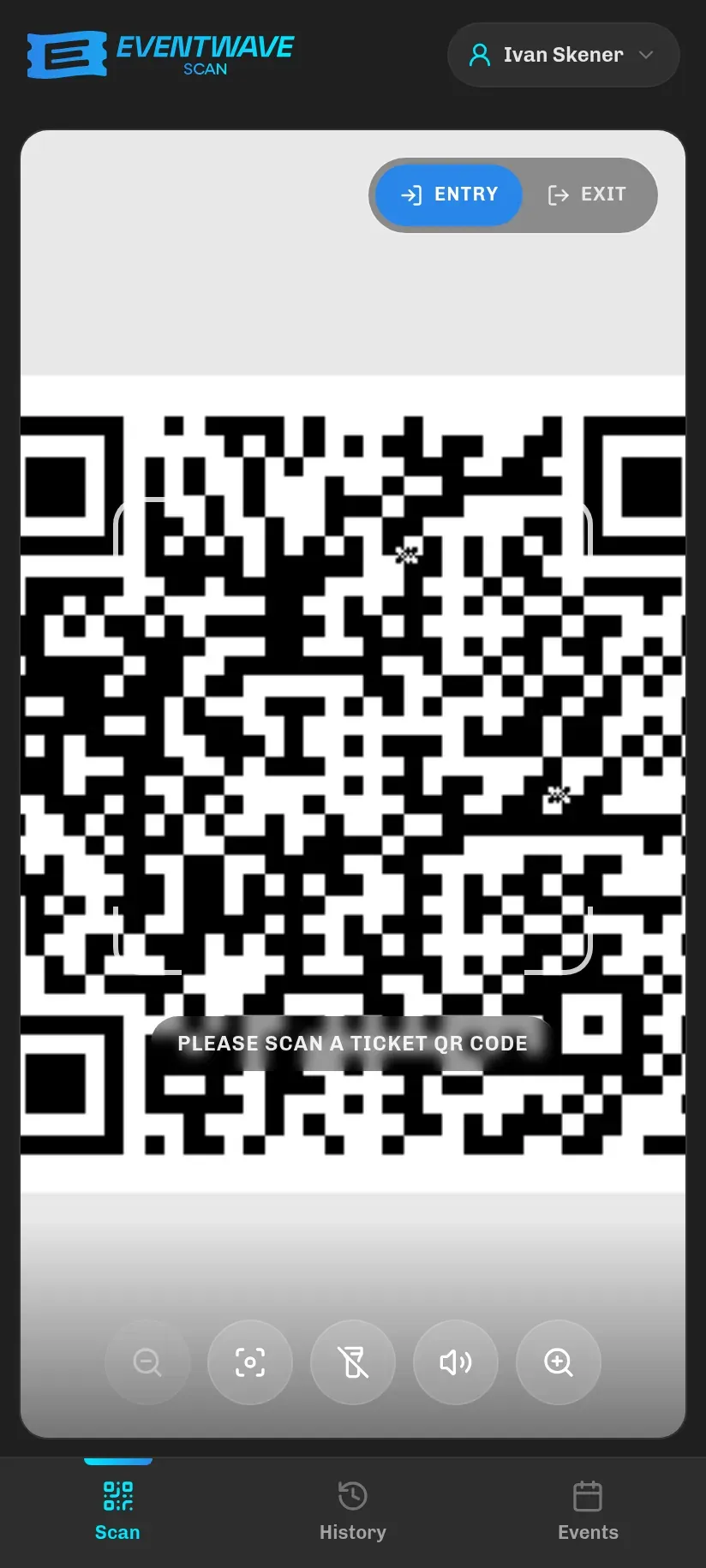
What you need
Section titled “What you need”| Recommendation | |
|---|---|
| Device | An Android phone or iPhone with a rear camera. It also works on a tablet or a laptop with a camera, but a phone is the most practical at the door. On a phone the app is locked to portrait orientation. |
| Browser | Chrome on Android or Safari on iPhone. On Android, Chrome uses the built-in fast barcode reader, so scanning is fastest there. |
| Internet | Required at all times. Every scan is verified on the Eventwave server; the app has no offline mode. Without a connection it won’t even load (you’ll see the browser’s standard error page). If the venue Wi-Fi tends to be unstable, switch on mobile data. |
| Camera | The first time you open the scan screen, the browser asks for camera permission. Scanning is impossible without it. |
| Location | Optional. When it opens, the scan screen also asks for location access (and refreshes it every 5 minutes). If you allow it, coordinates are recorded with every scan and are visible later in the history’s technical details. If you decline, the app stops asking and everything works the same: scanning is never blocked because of location. |
| Battery | The screen deliberately stays on while the scanner is open. Bring a power bank for longer events. |
Adding it to the home screen
Section titled “Adding it to the home screen”You can use the app directly in the browser, but it is much nicer to add it to the home screen: it then opens full screen, without the address bar, like a real app.
Android (Chrome)
Section titled “Android (Chrome)”- Open
scanner.eventwave.hrin Chrome. - Tap the ⋮ menu (top right).
- Choose Add to Home screen / Install app and confirm.
iPhone / iPad (Safari)
Section titled “iPhone / iPad (Safari)”- Open
scanner.eventwave.hrin Safari (it must be Safari, since other browsers on iOS can’t do this). - Tap the Share button (the square with an arrow pointing up).
- Choose Add to Home Screen and confirm.
The icon will appear among your other apps labelled “Ticket Scanner” (the app’s full name is Eventwave Scan; the icon carries the shorter name).
It works on a computer too
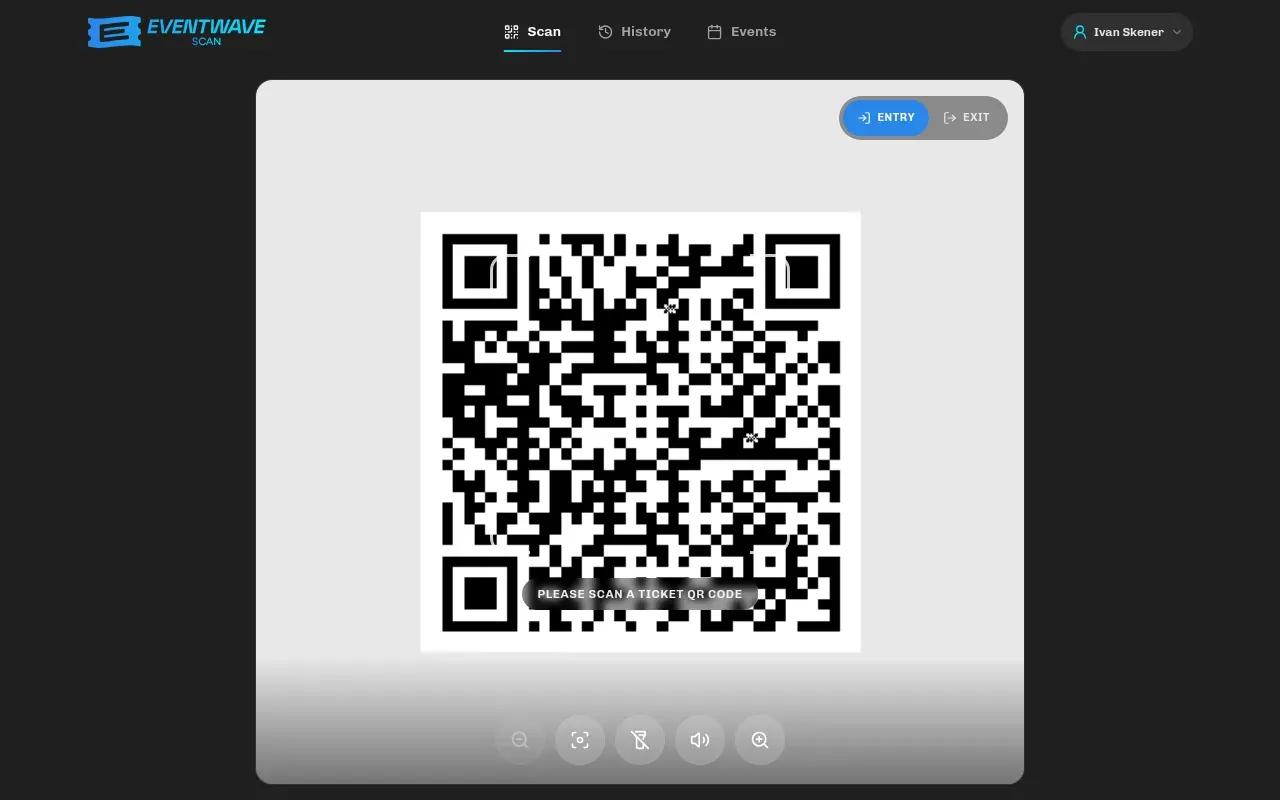
Section titled “It works on a computer too”On a laptop or desktop with a camera everything works the same: the interface simply widens, and the Scan / History / Events tabs move from the bottom bar to the header. Handy for a box office or an info desk.
A quick check before the event
Section titled “A quick check before the event”- Open the app while you have a stable connection and log in; the session stays active while you work (see Login).
- Allow camera access (required) and location (recommended) as soon as the app asks.
- Check that you can see your event on the Events tab. If it isn’t there, the organizer hasn’t added you as a scanner yet.
- Try scanning one ticket in advance if the organizer can give you one for testing; you’ll get an Event Not Started result if the event hasn’t begun yet, which means everything works.
- Turn up the sound on your phone or get used to the vibration: every result has its own tone and vibration, so you don’t have to look at the screen (see Scanning tickets).