
Your tickets
The email after purchase
Section titled “The email after purchase”A few minutes after a successful payment, an email “Your tickets for {event name}” arrives with two attached PDFs:
- Tickets: one document, with one page for each ticket, each with its own QR code, ticket number, attendee name, start date and time, and the venue address. The ticket number (
#XXXXXXXX) is the unique identifier of that exact ticket; it’s not a sequence number and differs from the order number; it’s handy to have at hand when talking to support. - Receipt: a fiscalized receipt (with the JIR, ZKI and fiscal QR code, as required by Croatian law) with a breakdown of the items, VAT and the total. The receipt is not a ticket; the ticket is a separate document. Exception: €0 orders (100% promo code) have no fiscalized receipt because there is no charge.
The message also has the View My Tickets button and Add to Google Wallet / Add to Apple Wallet buttons. For an order with a single ticket, the Wallet buttons in the email add that exact ticket; with several tickets they lead to My tickets, where you add each ticket separately.
Tickets are sent exclusively to the buyer’s email address entered at checkout. With personalized tickets each ticket carries the name of the person attending, but the PDF still goes to the buyer, so forward it to your guests.
My tickets
Section titled “My tickets”After logging in, open the user menu → My tickets. All paid orders are here (orders awaiting payment or failed ones aren’t shown):
- the All events / Active events / Past events filters and search (“Search Tickets”) by name; the search covers all your orders, not just the ones currently loaded,
- for each order: the order number (“Order number”), the purchase date (“Purchased”) and the Download tickets and Download invoice buttons,
- for each ticket: category, attendee name and email, price, a button for the QR code and Wallet buttons. Orders with many tickets show the first three, and the rest open with the Load more (X / Y) button.
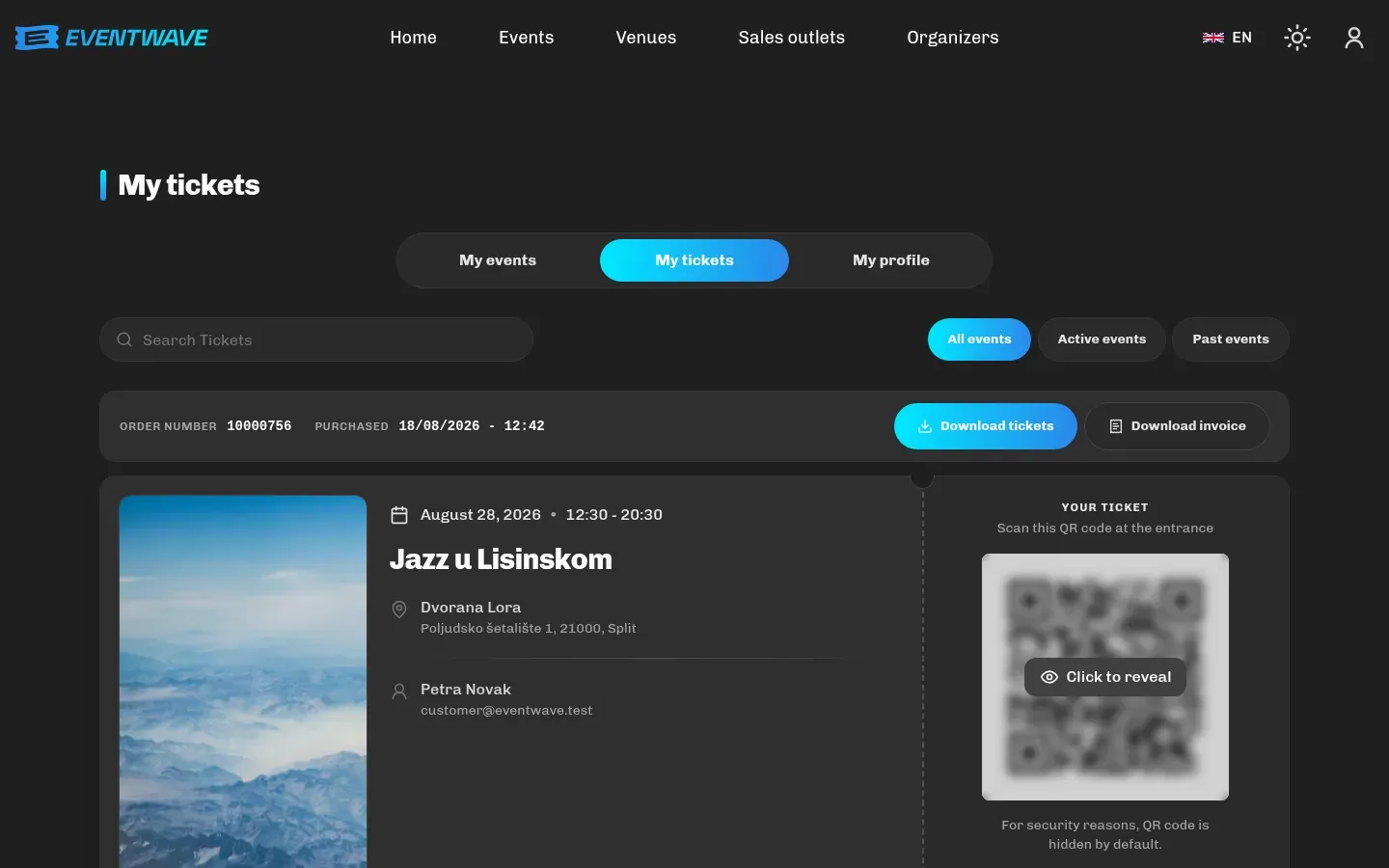
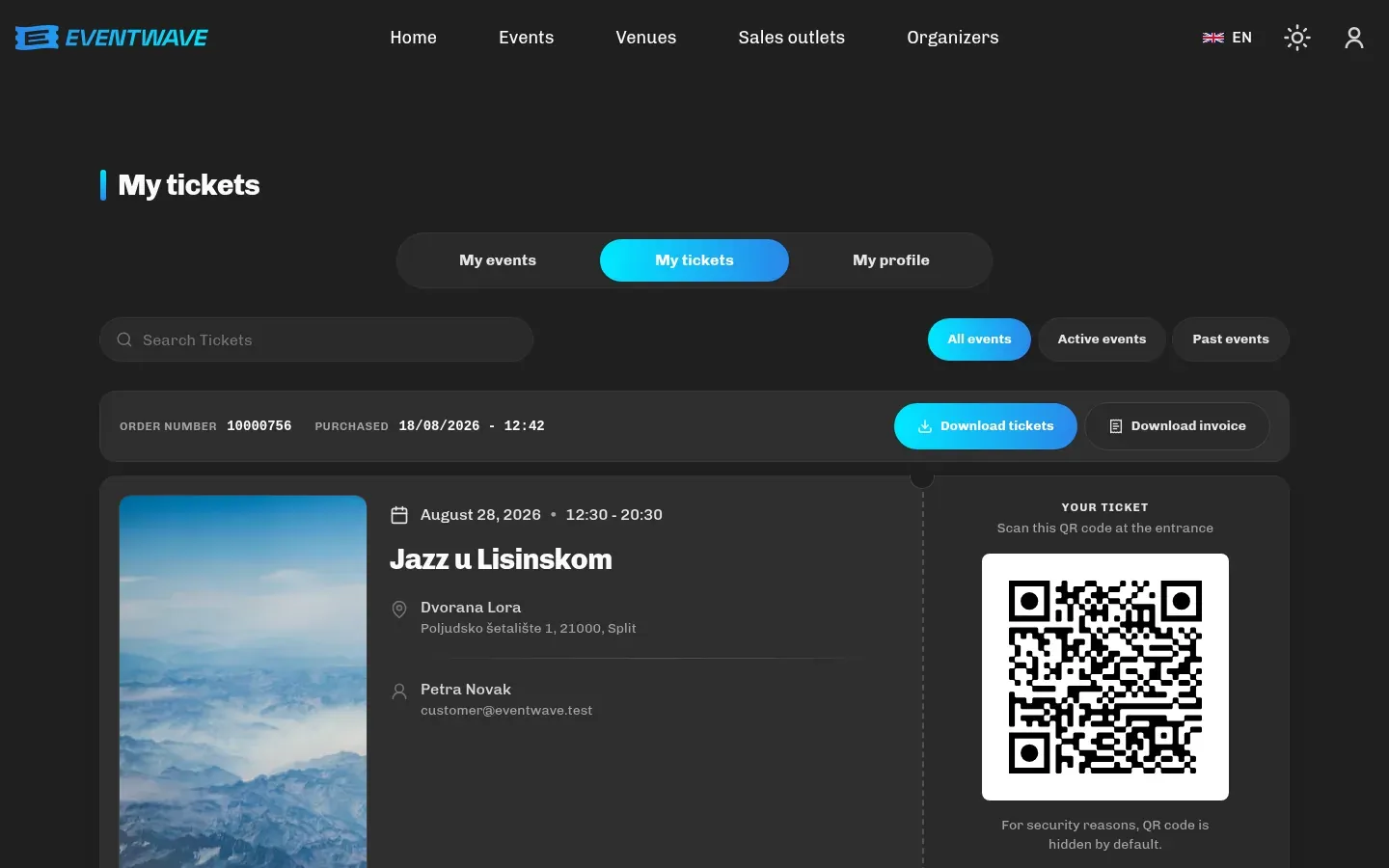
The QR code in the app is hidden until you open it (“Click to reveal”, with the message “For security reasons, QR code is hidden by default.”) and hides itself again when you switch tabs, as protection against someone photographing your screen. The code is fetched from the server each time it’s opened, so displaying it needs an internet connection; for entry without a connection bring the PDF or the Wallet ticket.
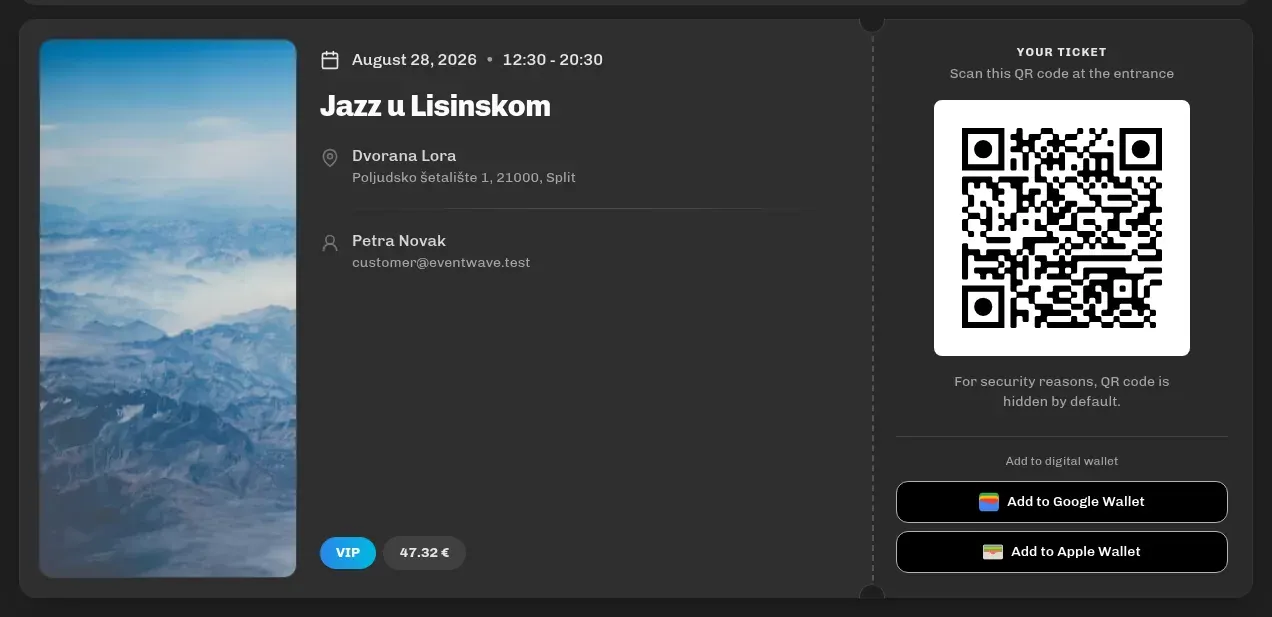
At the entrance you can show any form: the PDF, the QR from the app or Wallet; they all contain the same code. Check the exact doors-open time (if the organizer set one) on the event page or on the ticket card in My tickets (“Doors open:”).
Google Wallet and Apple Wallet
Section titled “Google Wallet and Apple Wallet”Next to each ticket (in My tickets → ticket details, or from the email):
- Add to Google Wallet: Google Wallet opens in a new tab and saves the ticket (“Google Wallet pass ready”).
- Add to Apple Wallet: a
.pkpassfile is downloaded; open it and confirm adding it.
The ticket in Wallet has the same QR code as the PDF.
Bought several tickets?
Section titled “Bought several tickets?”They’re all in the same PDF, each on its own page. At the entrance, have each person show their own page (or forward each person their page / a screenshot of their QR code). If several people show the same QR, the first person gets in and the others get “Ticket Already Used”.
Resending the email
Section titled “Resending the email”There is no separate “resend” option because you can download your tickets from My tickets at any time. If you can’t access your account (e.g. a typo in the email at registration), contact [email protected] with the order number or purchase details.
Ticket security
Section titled “Ticket security”- The QR code is valid for the first scan; every further attempt with the same code will be rejected (except at events with re-entry, where exits and entries are scanned).
- Don’t post photos of your ticket or QR code on social media: whoever has the code can enter instead of you, and the entry can’t be recovered then.
- Resale above face value and commercial resale are not allowed and can lead to the ticket being invalidated.
- Bring an ID, because the organizer may ask for it (especially with personalized tickets or an age limit).