
Login and choosing an event
Who can log in
Section titled “Who can log in”You log in to the scanner with the same Eventwave account you use on eventwave.hr (email + password). The requirement is that the organizer has granted you scanning rights for their event.
What this looks like from the organizer’s side is described in Scanners and door staff. In short:
- You create a (free) user account on eventwave.hr, if you don’t have one yet.
- The organizer adds your email to the scanner list: in their account settings (applies to all their events) or in the settings of an individual event.
- From that moment you can log in to the scanner and see that event.
Logging in
Section titled “Logging in”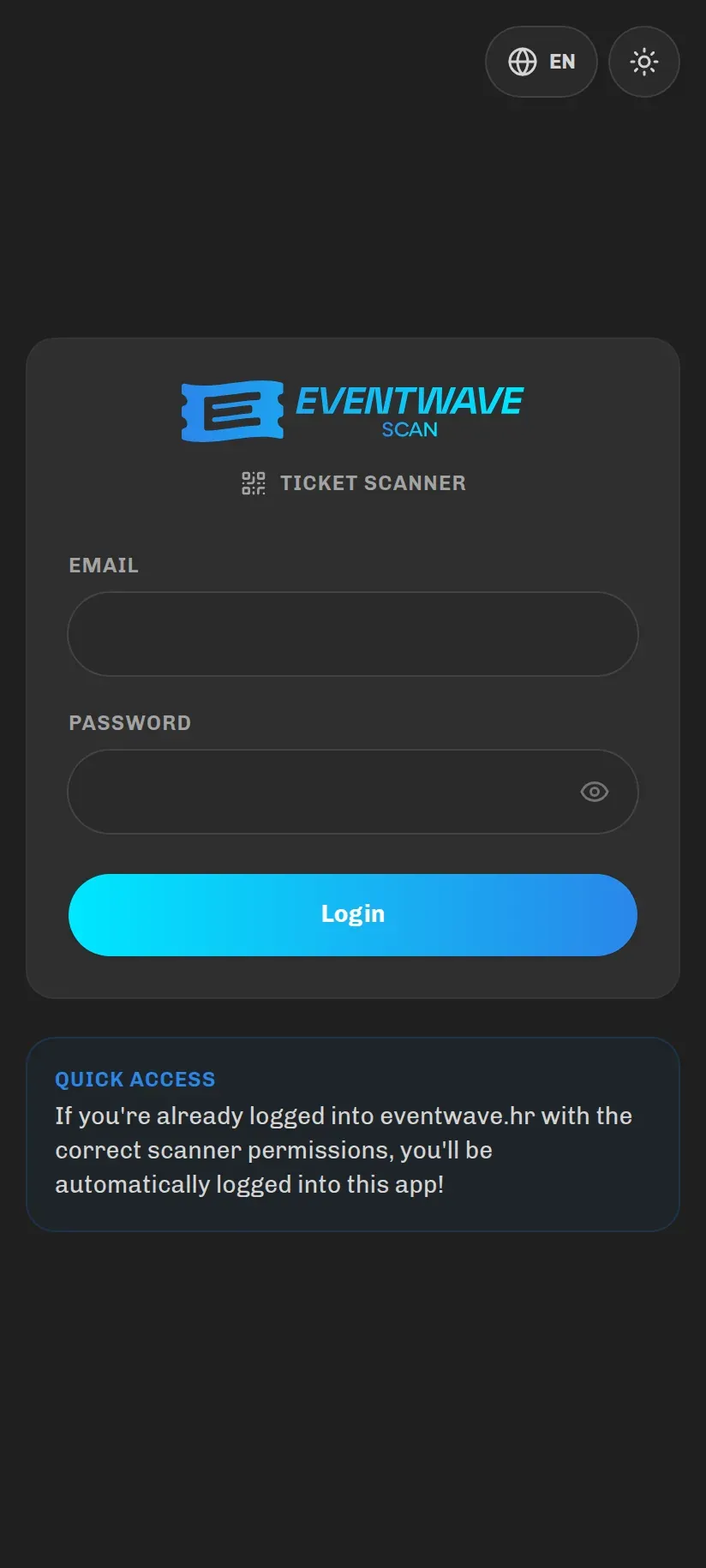
- Open the app. If you are already logged in to eventwave.hr on the same phone, the app will log you in automatically and take you straight to scanning; that’s why the login screen says “Quick Access”.
- Otherwise enter your email and password and tap Login.
- In the top right of the login screen you can change the language (HR/EN) and the theme (light/dark).
Messages you may see when logging in:
| Message | Meaning | What to do |
|---|---|---|
| “These credentials do not match our records.” | Wrong email or password. | Try again; the password is reset on eventwave.hr (see below). |
| “Too many login attempts. Please try again in N seconds.” | Five consecutive failed attempts. | Wait the stated time and try again. |
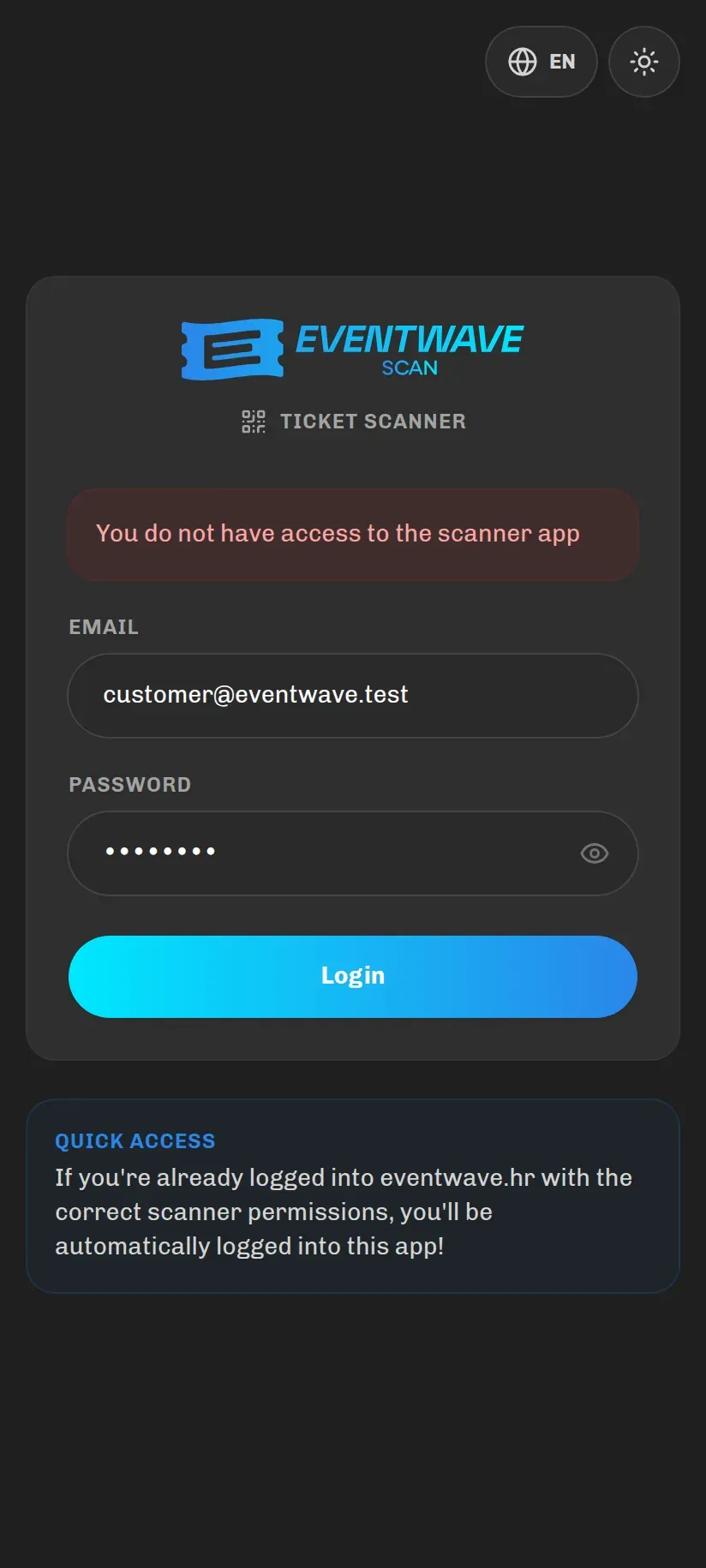
| “You do not have access to the scanner app” | The password is correct, but the account has no scanning rights. | Contact the organizer and ask to be added to the scanner list. |
| “Logout not finished yet” (yellow) | The previous logout happened without internet. This is just a notice, not an error. | You can log in normally right away; see Logging out. |
There is no “remember me” option, but the session lasts while you work: it is valid for 2 hours from your last activity and every scan extends it. It also survives closing the app; after a longer break the app will return you to the login screen.
Forgotten password
Section titled “Forgotten password”The scanner has no password reset of its own. Open eventwave.hr, click Login → Forgotten password, reset it via email and then log in to the scanner with the new password.
Who you are logged in as
Section titled “Who you are logged in as”The header always shows a chip with your name. Tapping it opens a menu:
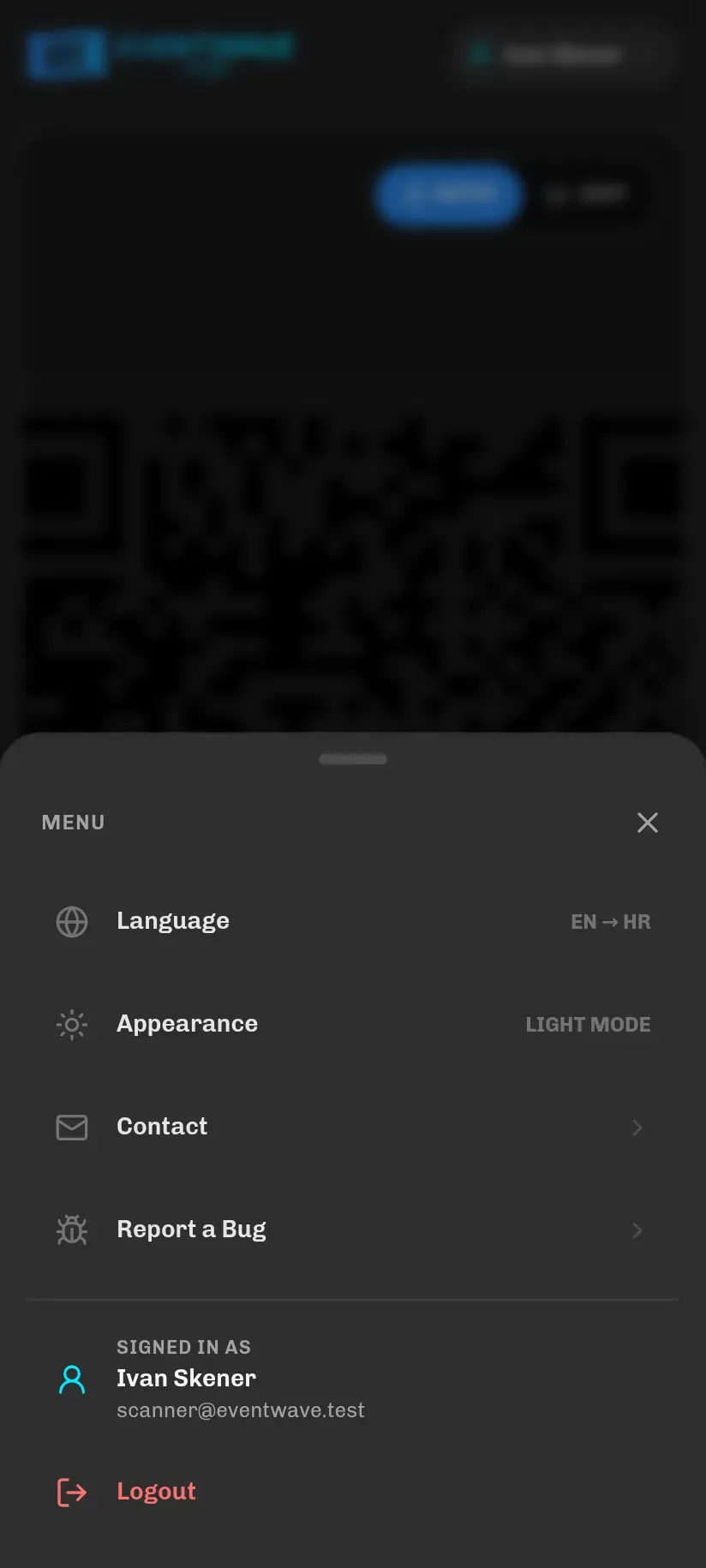
- Language: switch HR ↔ EN,
- Appearance: dark/light mode,
- Contact: opens an email to support ([email protected]),
- Report a Bug: a short form for reporting problems (see Troubleshooting),
- the name and email you are logged in with,
- a red Logout button.
On a phone there are three tabs at the bottom: Scan / History / Events.
The “Your Events” tab
Section titled “The “Your Events” tab”On the Events tab you see all events you have been added to as a scanner: upcoming and past, newest first, with a search by name (4 per page on a phone, 9 on a computer).
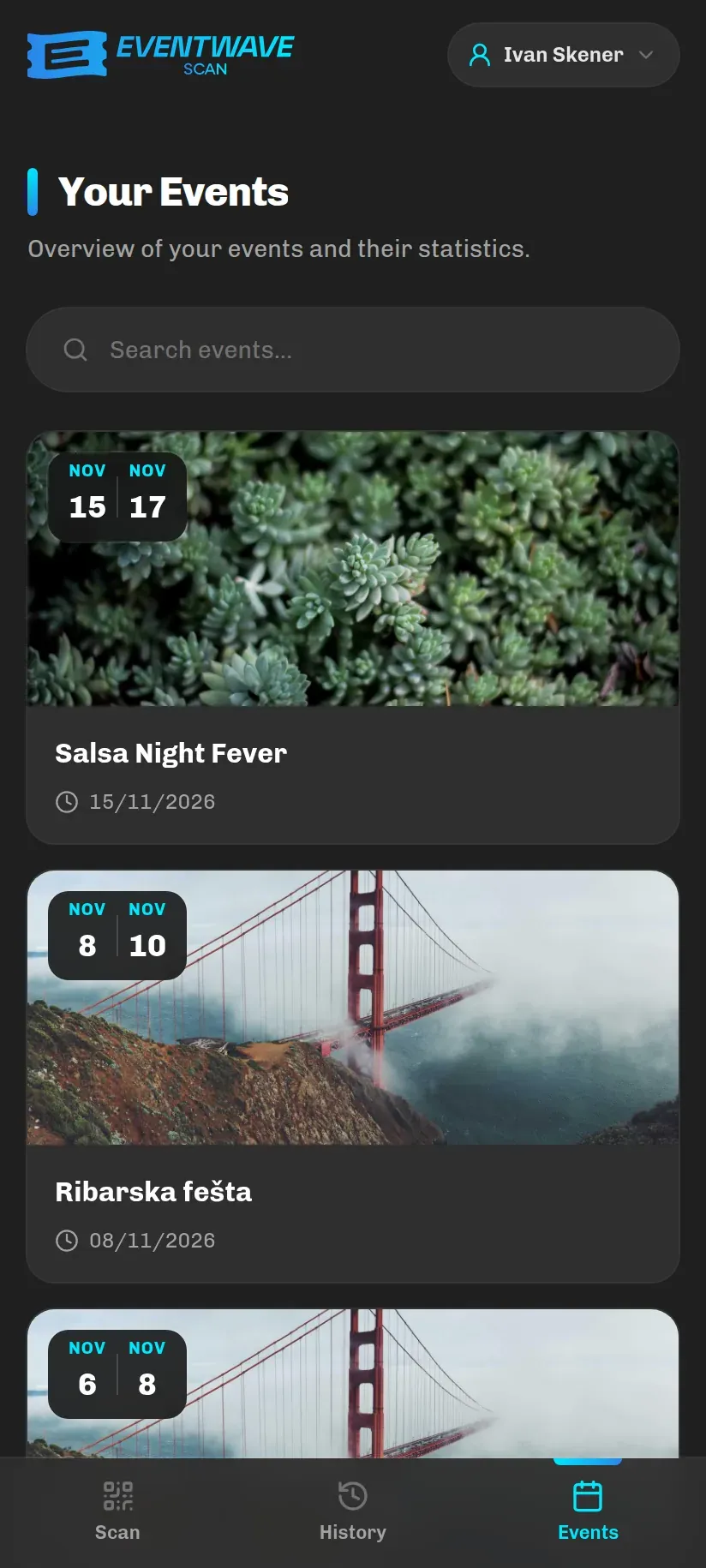
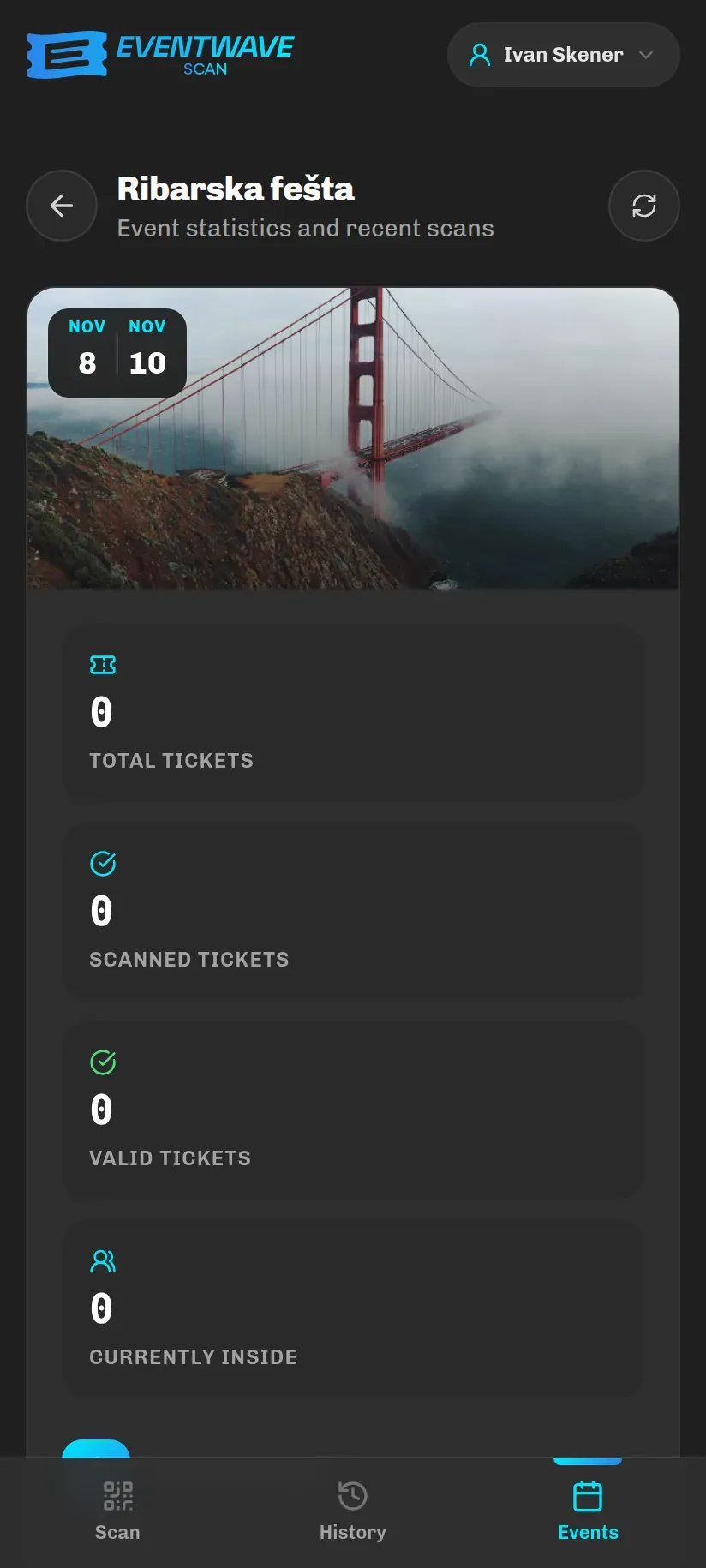
Tapping an event opens real-time statistics (refreshed with the Refresh statistics button):
| Number | Meaning |
|---|---|
| Total Tickets | All tickets issued for the event. |
| Scanned Tickets | Tickets that have been admitted at the entrance at least once. |
| Valid Tickets | Tickets that have not been invalidated. |
| Currently Inside | Only for events with re-entry: how many people are inside right now. |
| Recent Scans | The last 10 scans by all scanners at the event: attendee name, ticket type, time and outcome (green = entry, blue = exit, red = rejected). |
Statistics are shared for the whole event; History (the other tab) shows only your own scans; see History and statistics.
Logging out
Section titled “Logging out”Tap the chip with your name → Logout. Logging out of the scanner also logs you out of eventwave.hr on that device (they share the same session), which is exactly what you want on a shared phone.
If there is no internet at the moment you log out, the app will still log you out locally and show a yellow “Logout not finished yet” message the next time it opens. The session on the server will be closed automatically as soon as the app next opens with a connection; in the meantime nobody can be automatically logged in with your account.