Tickets and pricing
Ticket categories
Section titled “Ticket categories”Every commercial event has one or more ticket categories (e.g. Early Bird, Regular, VIP). You add them in step 3 of the wizard with the Add New Ticket button; for each one you set:
| Field | Rules and tips |
|---|---|
| Ticket name | Required, up to 50 characters. Buyers see it, it’s printed on the ticket and shown in statistics. |
| Description | Optional: what it includes (e.g. “entry + welcome drink”). |
| Ticket group | Basic, Early Bird, VIP or custom (up to 30 characters). Buyers see the categories grouped. |
| Price per ticket (€) | Required; up to €99,999, two decimals. The price you enter is the price you receive, and the service fee is added for the buyer on top of it. |
| No. of tickets | The category’s stock, up to 99,999. The availability shown to buyers already accounts for other people’s reservations in progress. |
| Tickets available from / until | Required. Outside that period the category is not shown to buyers at all. Sales cannot end after the event ends. |
| Minimum / Maximum number (Advanced Options) | Optional. Min > 0 forces the buyer to take at least that many (e.g. a bundle); max limits the quantity per order (e.g. at most 6); without a max, the event page lets a buyer pick up to 10 per order. Both must be greater than 0, and the minimum must not exceed the maximum. |
| Low Stock Threshold (Advanced Options) | Optional; when stock drops to that number, buyers see an Almost sold out badge next to the category. Must be greater than 0 and no greater than the category’s stock. |
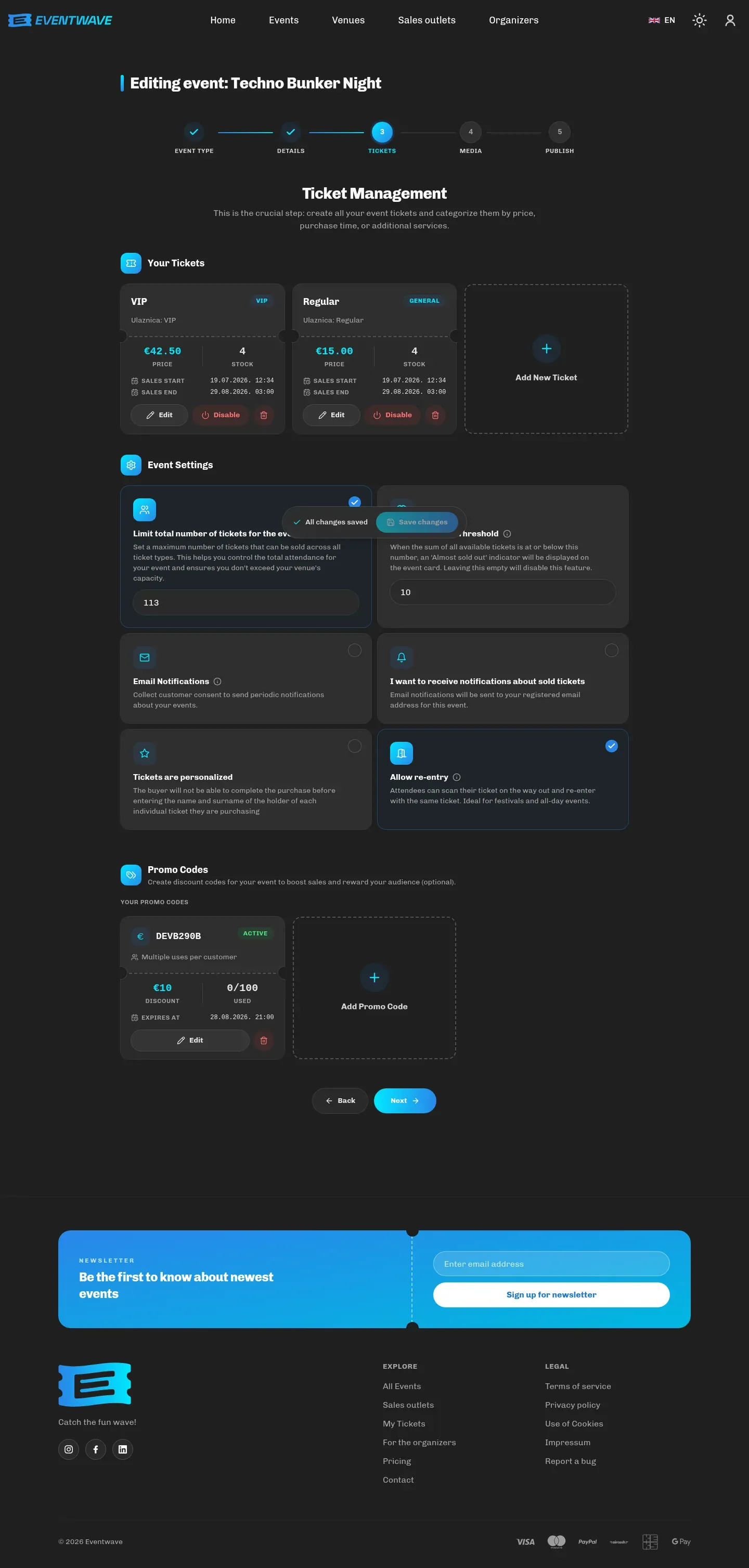
Enabled / disabled: you can temporarily disable any category (the toggle on its card); buyers then don’t see it, while the tickets already sold remain valid. At least one category must stay enabled. A category with sold tickets cannot be deleted, only disabled.
Event settings (step 3)
Section titled “Event settings (step 3)”- Limit total number of tickets for the event: an upper limit for the whole event, independent of the sum of categories (e.g. hall capacity 500, categories summing to 600). Cannot be greater than the sum of the stock.
- Event Low Stock Threshold: when total availability drops below it, the event card on the homepage gets an Almost sold out badge. For commercial events this field is required, and the wizard won’t let you continue until you fill it in.
- Email Notifications for buyers: a checkbox appears at checkout: “I would like to receive notifications from this organizer about similar events”; the addresses of those who tick it are available to you for future promotion (respecting GDPR).
- Sales notifications (email to you): Every Ticket (immediately after each paid order), Daily (every day at 7:00) or Weekly (Mondays at 7:00). If you don’t enable anything, reports are not sent. See Statistics and reports.
- Tickets are personalized: at checkout the buyer enters a first name, last name and email for every ticket; those names are printed on the tickets and visible to the scanner. Without this option all tickets are in the buyer’s name. Personalized tickets are not transferable without your approval.
- Allow re-entry: attendees may leave and come back; staff scan exit and entry. Without this option a ticket is single-use. Details: Re-entry.
What the buyer sees
Section titled “What the buyer sees”On the event page, categories are shown with the price and − / + buttons. Next to them appear: SOLD OUT (stock 0), Almost sold out (below the threshold), while categories outside their sales period or disabled are not visible. Buyers never see the exact stock: the page only receives the SOLD OUT / Almost sold out flags and how many they may still add (at most the per-order maximum, or 10).
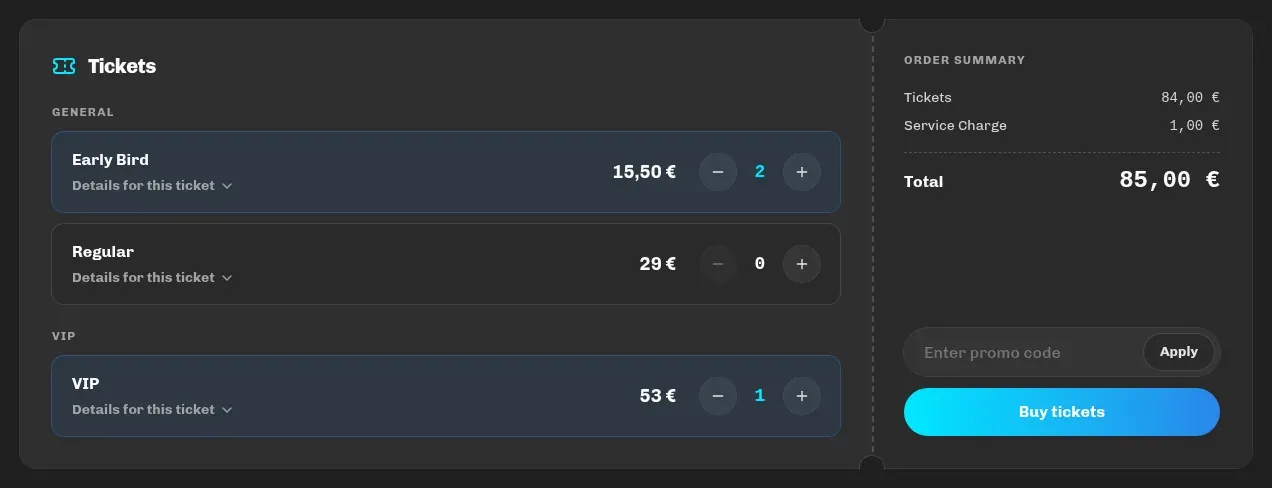
The order summary shows the buyer: tickets, the service fee, optionally ticket insurance and a discount, and the total. The purchase block is not shown at all if no category is currently on sale, so check the sales dates if buyers report that they “can’t see tickets”.
The service fee and your earnings
Section titled “The service fee and your earnings”- Eventwave charges one service fee per sale, to the buyer, on top of your price. The standard model is a fixed fee per order; depending on the arrangement it may be per ticket or a percentage of the ticket amount. The current fee and a calculator: eventwave.hr/pricing.
- You keep 100% of the ticket price. Discounts from your promo codes reduce your share.
- Ticket insurance is an optional Eventwave product the buyer can add; it does not affect your price or revenue.
- For individual events a custom fee model is possible (e.g. the organizer absorbs the fee, so the buyer pays only the ticket price). It is arranged with the Eventwave team.
- Free events cost nothing.
How VAT enters the price depends on your VAT-system status. See VAT, invoices and fiscalization.
Changes after sales start
Section titled “Changes after sales start”- A category’s price, name, description, stock and sales period can be changed at any time; tickets already sold keep the price they were bought at, and the statistics stay accurate.
- You can increase or decrease stock, but never below the number already sold. When editing, the No. of tickets field always means “how many more can be sold from now on”, not the historical total (sold tickets are added automatically).
- A category with sales cannot be deleted (disable it instead).
- Changing the event’s start/end automatically carries over to the validity period of tickets already issued.
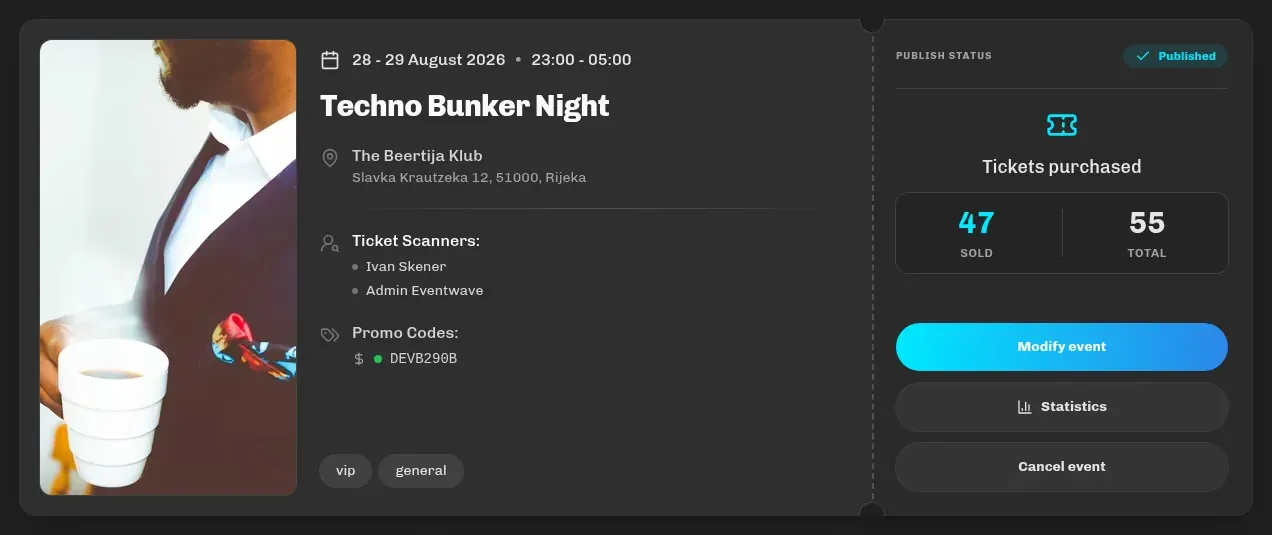
You can see the state per category (sold / total, stock, price) at any time on the event card in My events and on the statistics page.