
Publishing and editing
Event statuses
Section titled “Event statuses”| Status | Meaning | Visibility |
|---|---|---|
| Draft | Saved, not sent for review. | Only you (preview from My events). |
| In review | Sent to the Eventwave team for review. | Only you. |
| Published | Visible to buyers; sales run according to the categories’ periods. | Everyone (private: link only). |
| Cancelled | You cancelled the event. | The event page is no longer publicly accessible; sales are stopped. |
| Finished | The end time has passed. | The page stays up with an “event has ended” notice. |
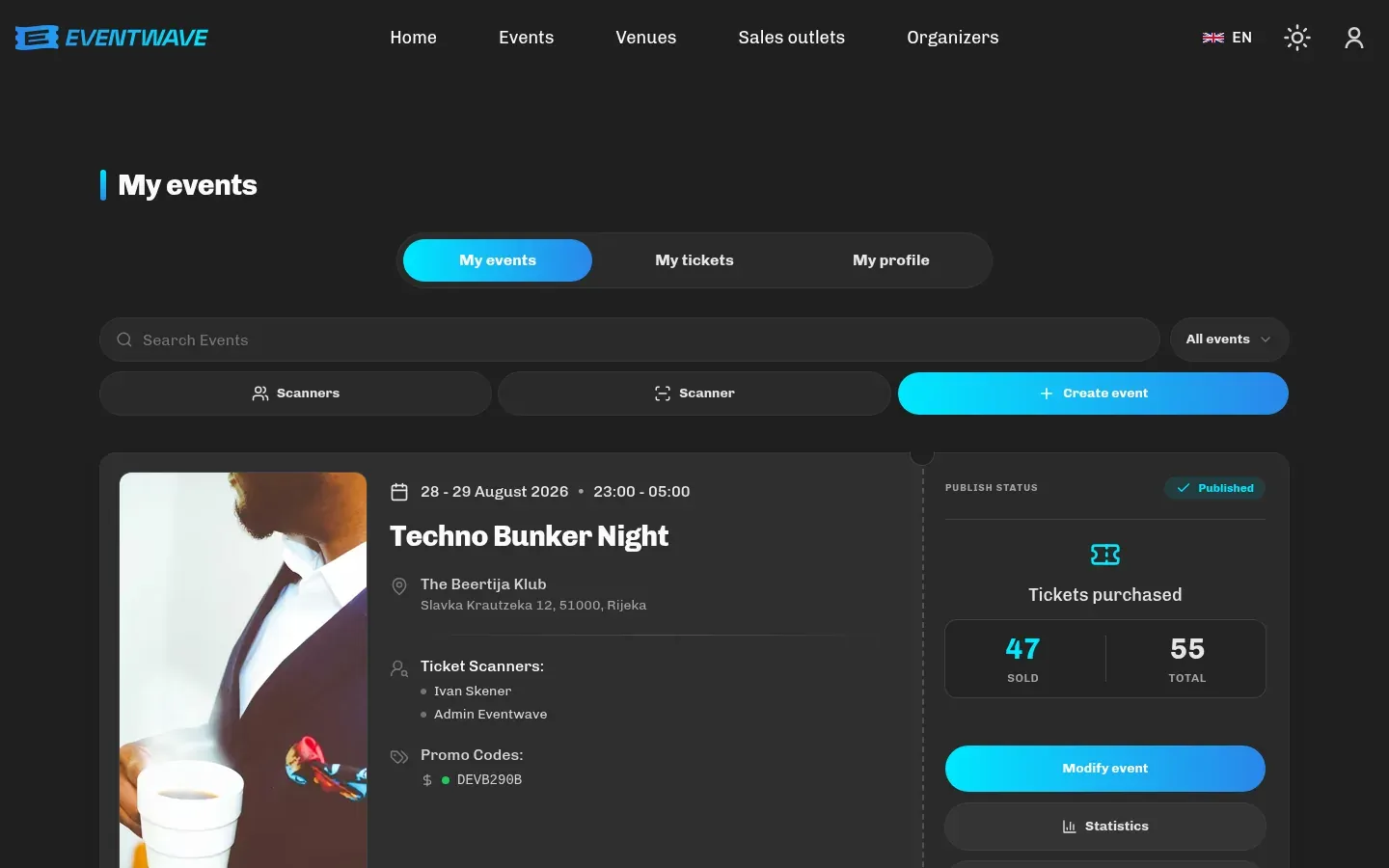
Request publishing (the button on a draft in My events or on the screen after creation) sends the event for review immediately, with no extra confirmation. Clicking again sends nothing new, because the request is already recorded. For verified organizers a new event goes for review automatically; trusted organizers publish immediately. Review takes up to three business days; track the status in My events.
Editing an event
Section titled “Editing an event”My events → Modify event opens the same five-step wizard, with three helpers:
- Save bar (bottom of the screen, on every step): shows “n unsaved changes” or “All changes saved” and a Save changes button. You can jump freely between steps; nothing is saved until you click.
- Change review: before saving, a Review your changes dialog opens with an old → new list per field (dates, text, images, FAQ) and Added / Removed / Updated labels for ticket categories. Confirm or cancel.
- Loss protection: if you try to leave the page with unsaved changes, a Leave without saving? dialog offers Save & leave / Stay on this page / Discard changes & leave.
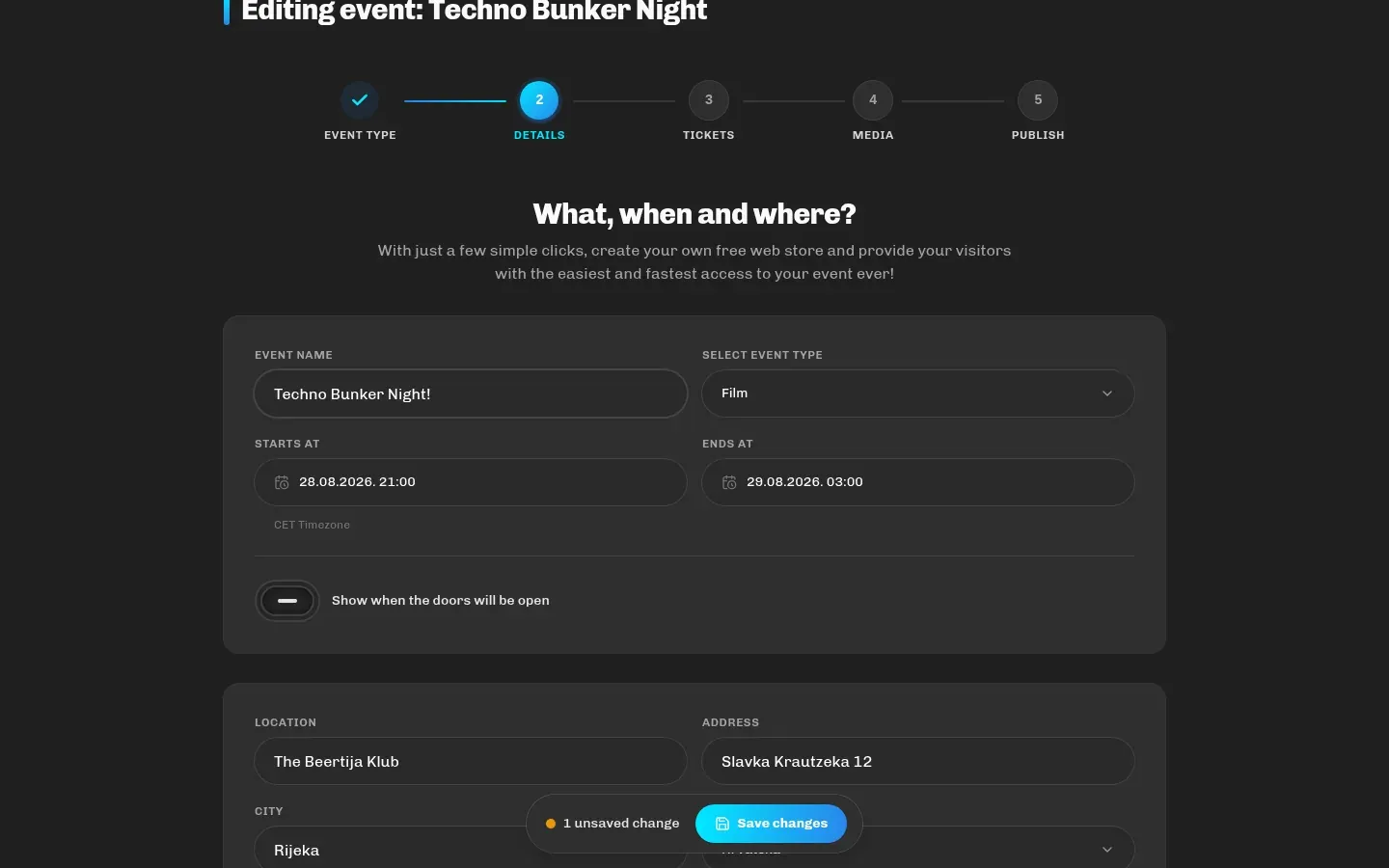
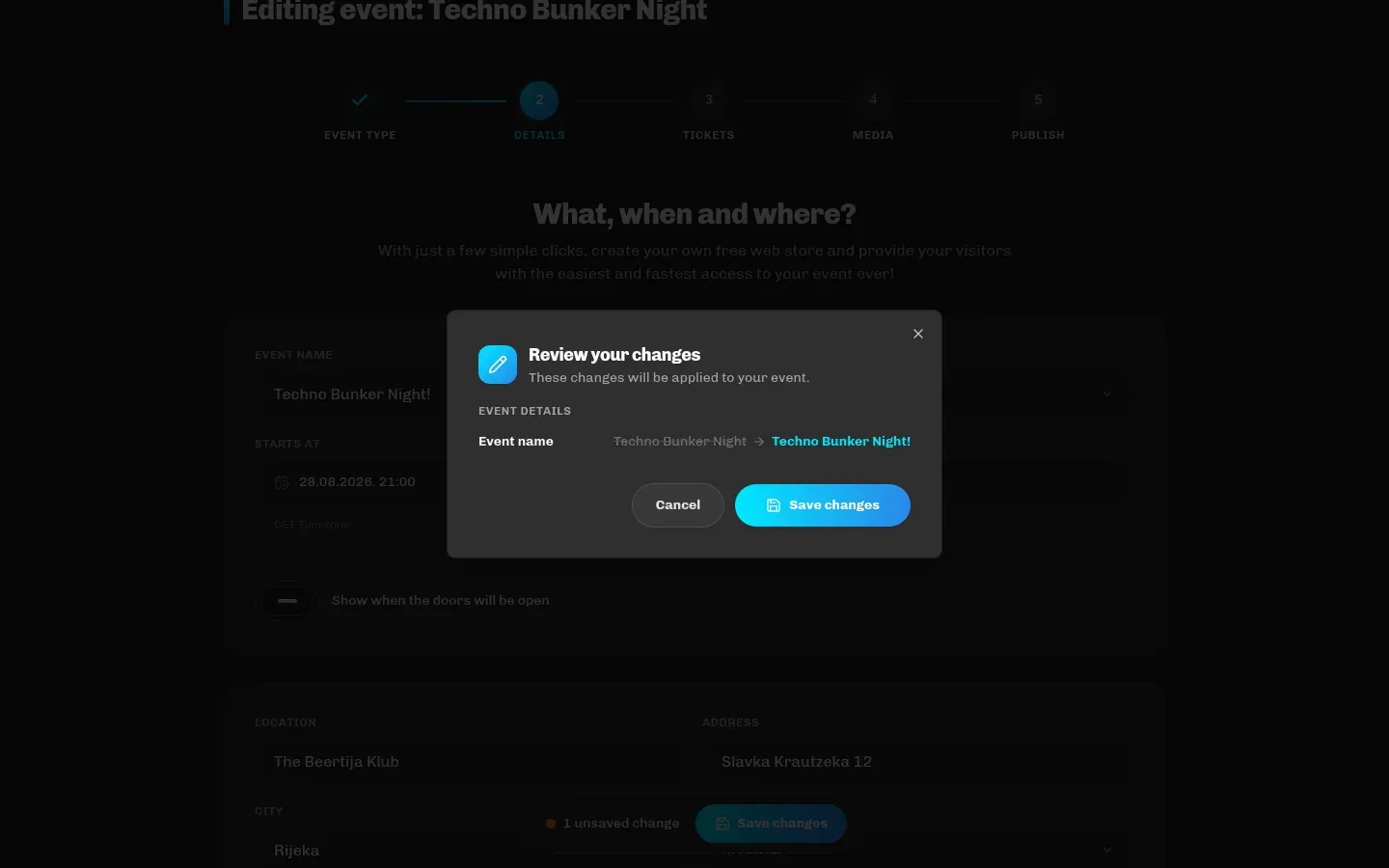
Changes are visible to buyers immediately after saving (a published event stays published and does not go through review again; only the publication of a new event is reviewed). Promo codes and scanners save separately, as soon as you add them, and do not appear in the change review.
What is restricted after sales
Section titled “What is restricted after sales”- A category with sold tickets cannot be deleted. Disable it (buyers no longer see it).
- The last category cannot be deleted; at least one must stay enabled.
- Stock can be changed, but never below the number already sold.
- The event’s end cannot be moved before the end of any category’s sales: shorten the sales first.
- Changing the event’s date/time automatically updates the validity period of tickets already issued (buyers don’t need to do anything; PDFs they already downloaded show the old date, so let them know).
- An event with paid orders cannot be deleted, only cancelled.
Cancelling an event
Section titled “Cancelling an event”My events → Cancel event opens a confirmation dialog. The event gets the Cancelled status, is removed from the homepage, its page stops being publicly accessible and sales stop.
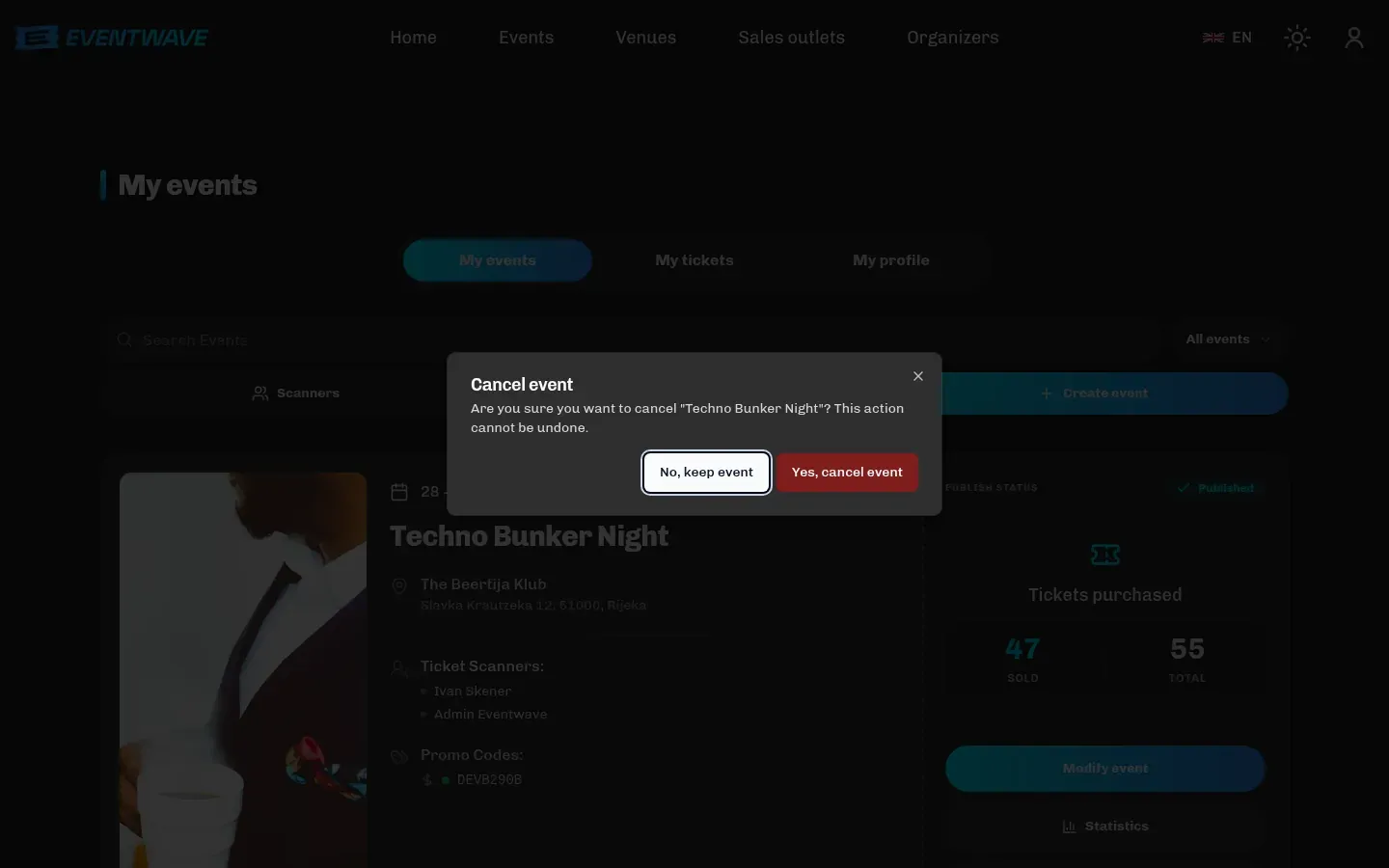
An event without paid orders (a draft or an event with no sales) can also be deleted: its images and assigned scanners are removed.
Postponing / rescheduling
Section titled “Postponing / rescheduling”Don’t cancel the event. Instead, change the date in step 2. Tickets automatically become valid for the new date. Buyers who can’t make the new date have the right, under the Terms, to request a refund within 14 days of being notified, so do inform them of the change.
Drafts and sessions
Section titled “Drafts and sessions”- As a guest, the wizard keeps your input in the browser for 7 days (including the images you selected) and restores it the next time you open the page, even after logging in via Google/Facebook.
- As a logged-in user, save a draft by clicking Create event (the event is created as a draft). That’s the safest way to lose nothing; continue via Modify event. Without that, your input is kept only until the browser tab is closed.