
Scanning tickets
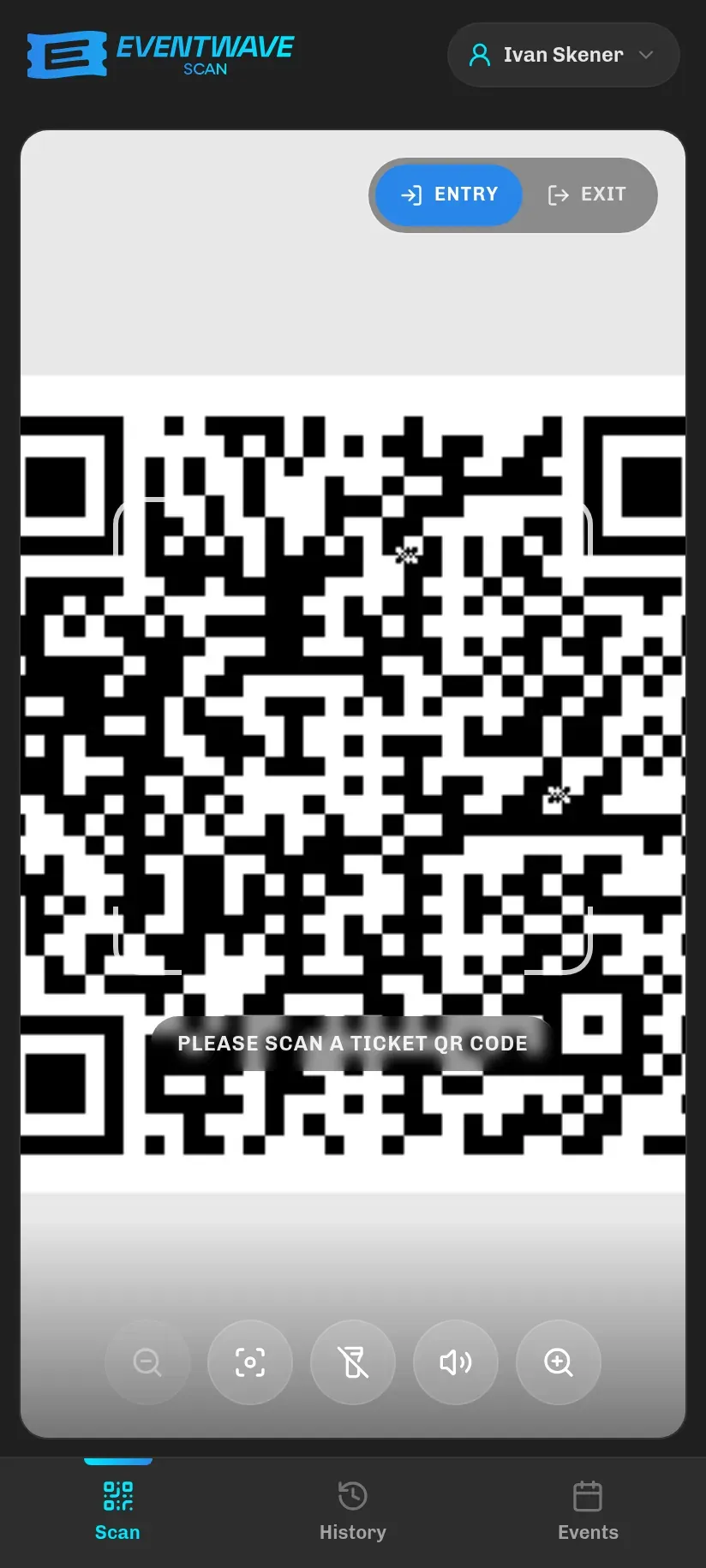
After login the app opens on the Scan tab: a full-screen view of the rear camera with a square frame (reticle) in the middle and the message “Please scan a ticket QR code”.
How to scan
Section titled “How to scan”- Ask the attendee to show their QR code: on a phone (PDF, email, Google/Apple Wallet) or printed. All these forms contain the same code and are equally valid.
- Point the camera so the QR code is inside the frame. Codes outside the frame are deliberately ignored, so you can scan in a crowd without fear of catching someone else’s ticket.
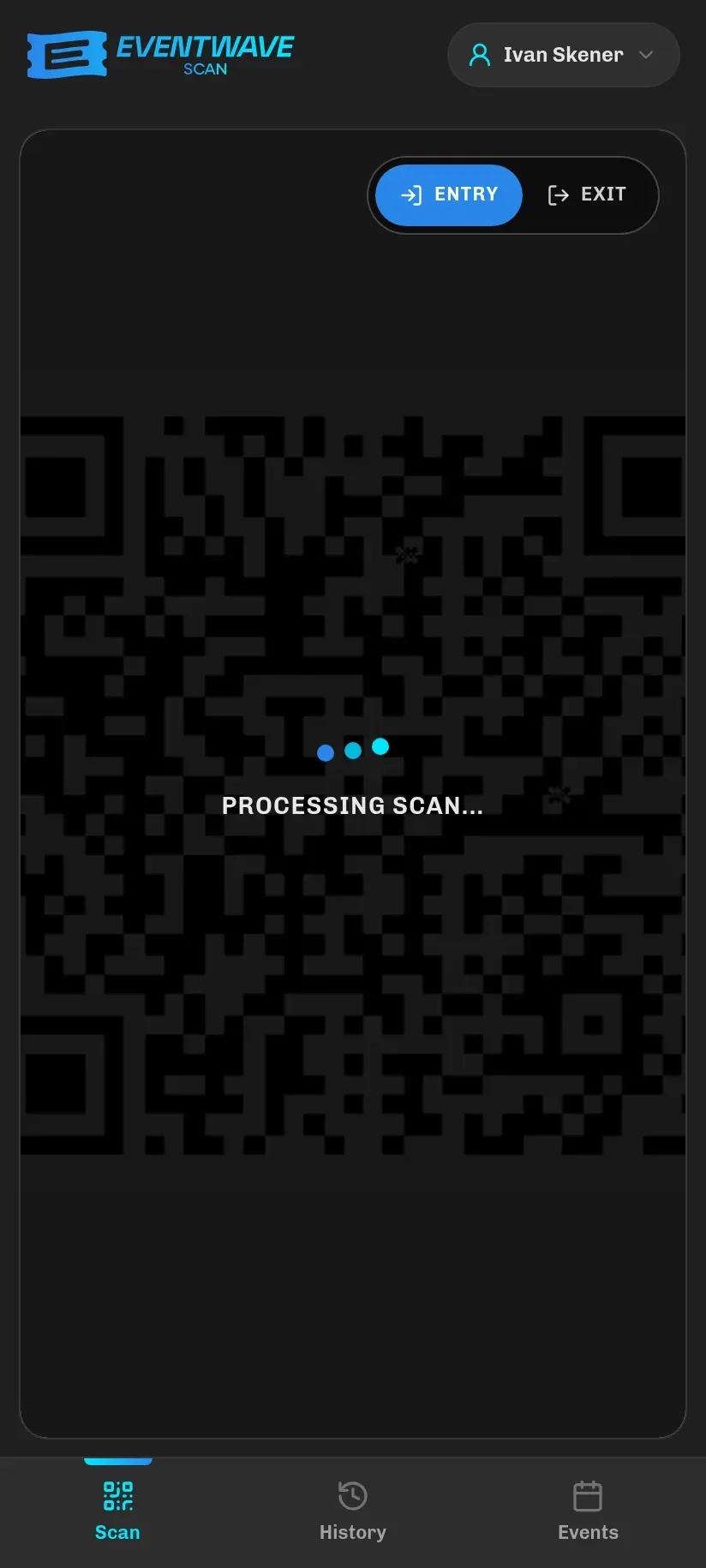
- As soon as the app reads the code, you’ll hear a short click, the corners of the frame turn cyan and “Processing scan…” appears; the code is being sent for verification.
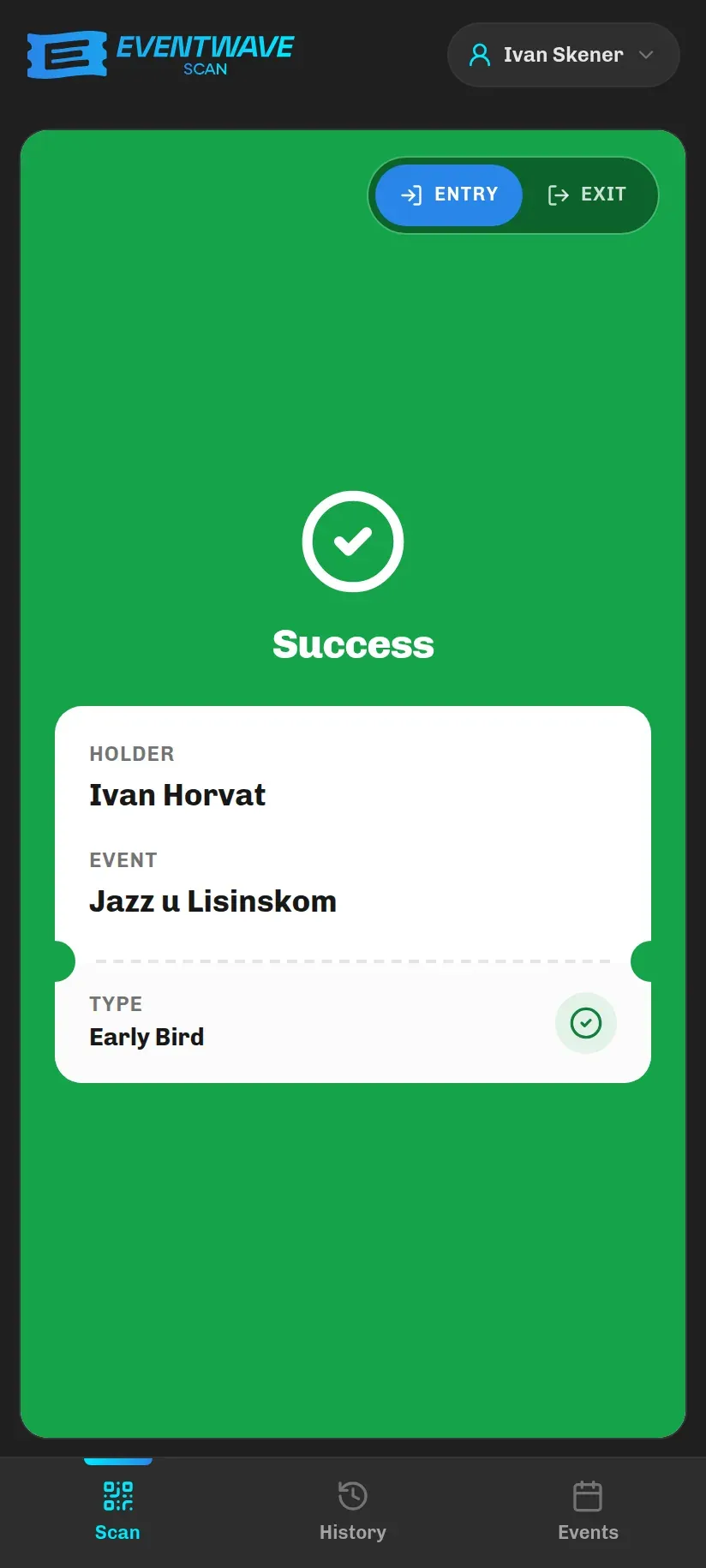
- Within a second the full-screen result appears (color, title, attendee name and ticket type), with a sound and vibration.
- Green, blue and yellow results disappear on their own after 3 seconds. Rejections that show ticket details stay on screen until you tap them (at most 15 s); see Scan results.
You don’t need to press anything between two guests: scanning is continuous.
Colors, sounds and vibration
Section titled “Colors, sounds and vibration”You don’t have to keep looking at the screen: every outcome has its own sound (and vibration on Android):
| Color | Meaning | Sound | Vibration (Android) |
|---|---|---|---|
| Green | Entry approved | rising two-tone chirp | two short |
| Blue | Exit recorded (only events with re-entry) | the same chirp | two short |
| Red | Ticket rejected | low descending buzz, the loudest of all | one long |
| Yellow | No verdict (a connection or server problem) | three medium beeps | three short |
There is also a quiet click the moment the code is read (before the result arrives).
- There is no vibration on iPhone, but the sound plays even when the silent switch is on; that’s deliberate, so a result never passes unheard.
- Sound activates only after the first touch of the screen after the app opens (a browser rule); if the very first result is silent, that’s why.
- You can mute the sound with the speaker button in the toolbar; the setting is remembered on the device. Muting silences only the sound, and vibration stays on.
On-screen tools
Section titled “On-screen tools”At the bottom of the screen (when no result is showing) there is a toolbar:
- Zoom −/+: only if the camera supports zooming. Useful when the attendee holds their phone too far away or the QR code is small.
- Refocus (target icon): always available; resets focus and returns the zoom to its starting point. Try it if the image is blurry.
- Flashlight: only if the device supports it (mostly Android). Essential in dark venues for paper tickets; for phone screens it usually isn’t needed.
- Sound: mutes the tones (vibration stays).
If any of your events allows re-entry, you’ll also see an Entry / Exit toggle in the top right; see Re-entry. Every time the app is reopened, the toggle is back on Entry.
The first time it opens, the screen asks for camera permission (required) and location (optional: coordinates are then recorded with scans, and declining blocks nothing).
Tips for working fast at the door
Section titled “Tips for working fast at the door”- The attendee’s screen brightness. The most common reason for slow reading is a screen that is too dark or auto-brightness. Ask them to turn the brightness up, or to open the ticket in Wallet, which does that by itself.
- Crumpled paper and reflections. Flatten the paper, avoid direct light on foil or the phone’s screen protector; zoom in briefly if needed.
- You don’t need to pick an event. The scanner knows on its own which event a ticket belongs to. If someone shows you a ticket for an event you haven’t been added to, you’ll get a yellow Unauthorized Scanner.
- Several tickets on one phone. When someone buys several tickets, they are all in the same PDF, each on its own page with its own QR code. Have them swipe to the next page; don’t scan the same page twice.
- A group with one order. If one person bought tickets for the whole group, they can show them all at once; the name on the ticket is the buyer’s name (or the individual attendee’s if the organizer enabled personalized tickets).
- ID checks. Identity checks are not enforced by the app; check IDs according to the organizer’s instructions (e.g. with personalized tickets or age limits).
- The screen doesn’t turn off. While the scanner is open, the phone deliberately keeps the screen on. Lock it manually when you go on a break.