
Troubleshooting
Camera
Section titled “Camera”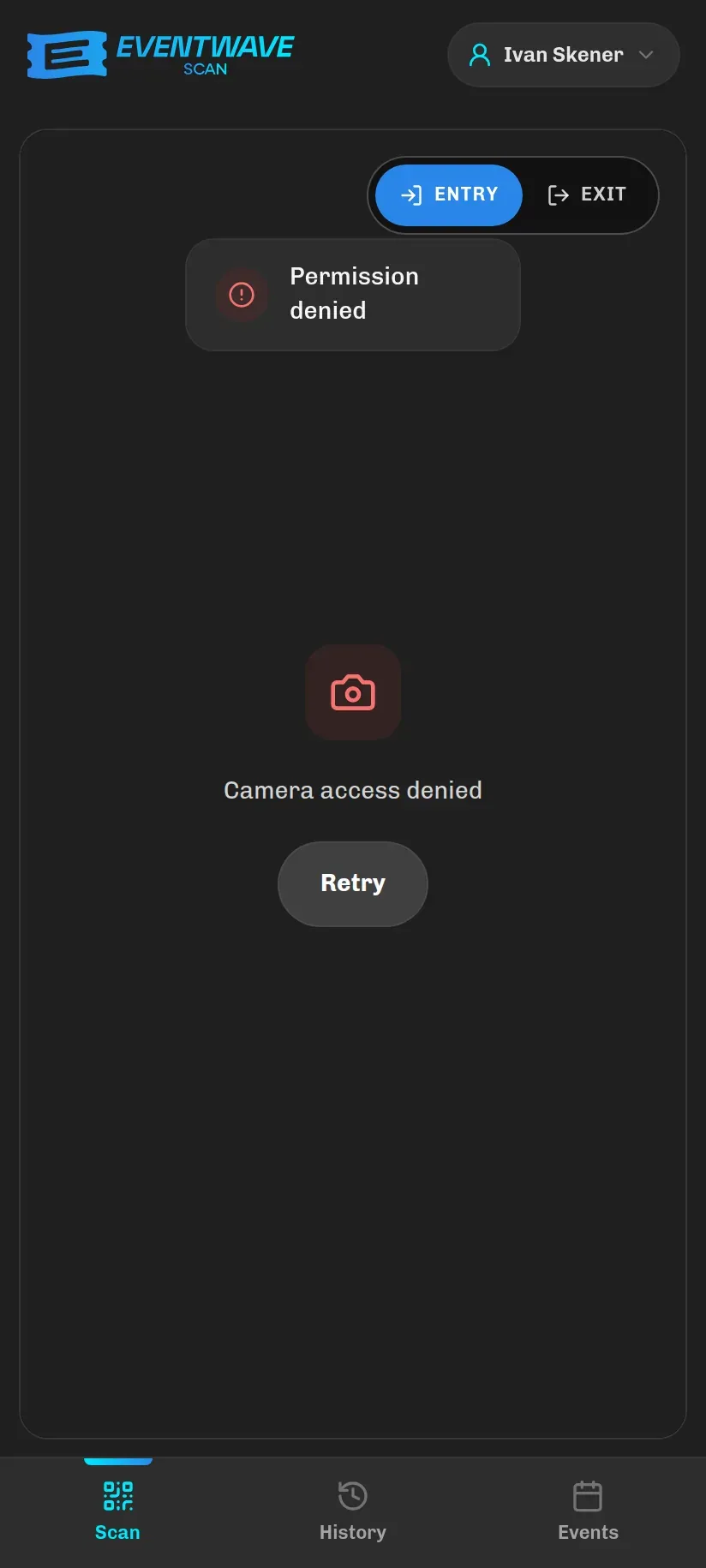
“Camera access denied” The browser has no camera permission. Tap Retry and allow access. If the prompt doesn’t appear:
- Android/Chrome: the padlock icon in the address bar → Permissions → Camera → Allow; or Settings → Apps → Chrome → Permissions.
- iPhone/Safari: Settings → Safari → Camera → Allow; for the home-screen app, Settings → Ticket Scanner → Camera. Then refresh the page.
A black screen or “Initializing camera…” that never ends Another app is holding the camera (e.g. the camera app open in the background). Close it, then refresh the scanner. On iPhone, make sure you opened the app in Safari or from the home screen (not from the in-app browser of Instagram/Facebook).
The image is blurry, the code won’t read Tap the refocus button (target icon). Wipe the lens. If the code is small or far away, use zoom +. Ask the attendee to turn up their screen brightness or open the ticket in Wallet.
No flashlight or zoom button The device/browser doesn’t support them (typically iPhone). Use the phone’s physical flashlight from the control centre only if that doesn’t turn off the camera; otherwise light the paper with another source.
Connection and yellow results
Section titled “Connection and yellow results”Yellow results mean the check was never completed, never that the ticket is bad. The full list is in Scan results.
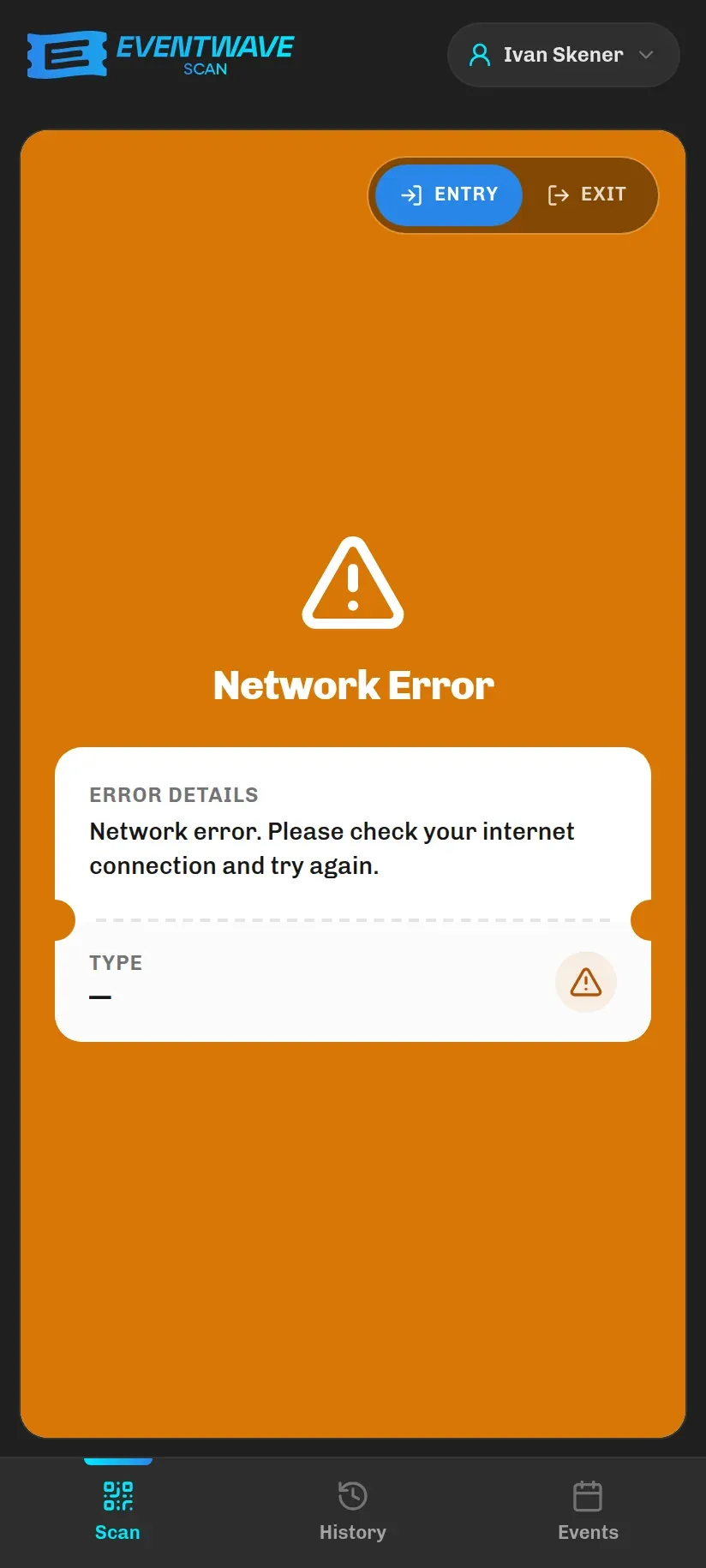
- Timeout / Network Error: check the Wi-Fi or switch to mobile data. Scan the same ticket again: if the first scan did arrive after all, you’ll get green with the note “Already scanned moments ago” (valid for 30 seconds for your account), not a false rejection.
- Server Error: a brief interruption on Eventwave’s side; wait a few seconds and try again. If it lasts longer than a minute, contact support.
- “Processing scan…” that stays too long: after about 20 seconds the app cancels the stuck check on its own and frees the scanner. Check the connection, then scan again.
- The app won’t load at all (the browser’s error page): no internet. The app does not work offline; without a connection there is no camera view either.
Login and access
Section titled “Login and access”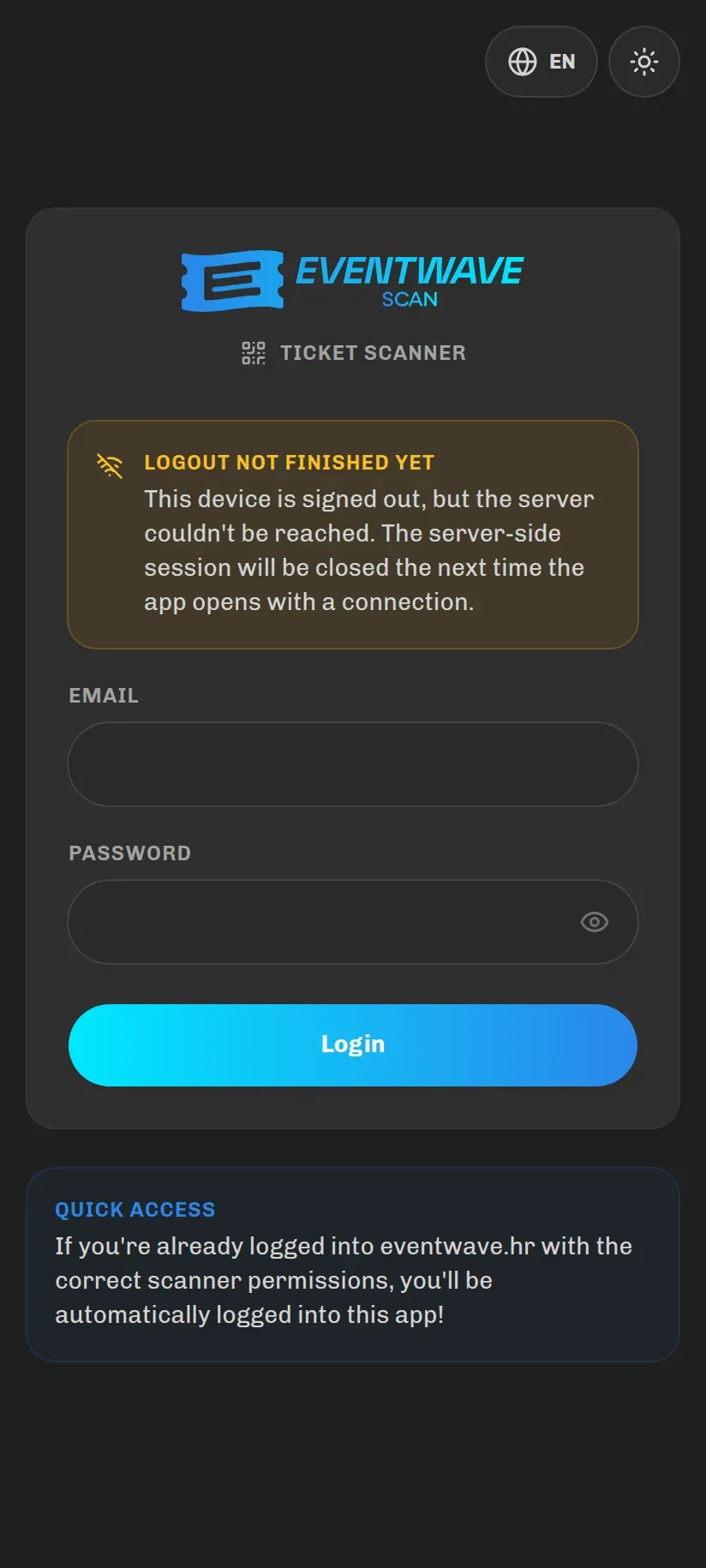
- “You do not have access to the scanner app”: the password is correct, but the account has no scanning rights. The organizer needs to add you to the scanner list (see Scanners and door staff).
- “These credentials do not match our records.”: wrong email or password. After 5 consecutive misses comes “Too many login attempts…”, so wait the stated seconds.
- I can’t see the event on the Events tab: you haven’t been added to that event (the organizer may have added you to a different one only). If you can log in but the event is missing, its tickets will return a yellow Unauthorized Scanner.
- Session Expired: the session lasts 2 hours from your last activity; after that the app returns you to the login screen. Log in and continue; nothing is lost.
- Forgotten password: reset it on eventwave.hr (Login → Forgotten password), not in the scanner.
- “Logout not finished yet”: you logged out while there was no connection. Everything is fine: the device is logged out, and the server-side session will be closed automatically the next time the app opens with a connection. You can log in again right away.
- Results are silent: check the speaker button in the toolbar (muting is remembered on the device) and the phone’s volume. Sound activates only after the first touch of the screen after the app opens.
- On iPhone the sound plays even with the silent switch on; there is no vibration on iPhone (Android only).
- Muting silences only the sound, and vibration on Android stays on.
Disputed scans
Section titled “Disputed scans”- Write down or photograph the record’s sequence number from the History tab and the time; support uses it to find the exact scan. The row also holds the Technical Details (ticket ID, direction, IP, device).
- For Ticket Already Used, read who scanned it and when; the card stays on screen until you tap it. See Scan results.
- The Ticket Not Found, Unauthorized Scanner and Invalid QR Format results are not recorded in the History; if you need evidence, screenshot the result.
- The app has no manual code entry and no search by name. If a QR code can’t be read (destroyed paper, a shattered screen), the attendee can open the ticket from their email or from eventwave.hr → My tickets on any device; as a last resort the organizer can mark the ticket as used with the help of Eventwave support.
Reporting a bug
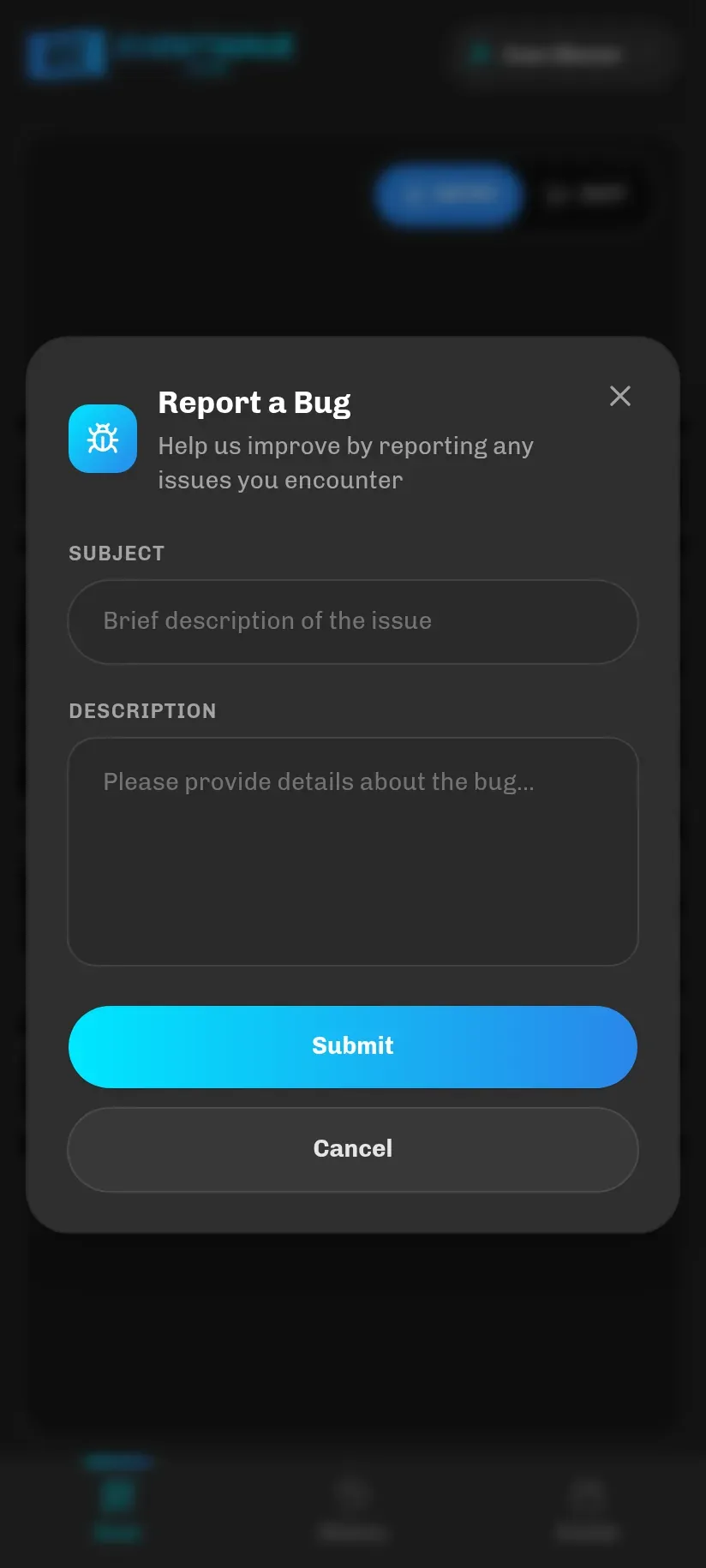
Section titled “Reporting a bug”From the menu (tap the chip with your name) choose Report a Bug, enter a Subject (a short description of the problem) and a Description (what you were doing, which message appeared), then tap Submit.
For urgent problems in the field, call support; see Contact and support.