
History and statistics
The app has two data views that are often confused:
| History | Events → statistics | |
|---|---|---|
| What it shows | Only scans by your account (on this and other devices) | Data for the whole event (all scanners) |
| What it’s for | Checking what you scanned, technical details, disputed cases | Insight into entry progress and the number of people inside |
| Who sees it | Each scanner their own | All scanners added to the event |
The History tab
Section titled “The History tab”A list of your account’s scans, newest first, 20 per page. You move through pages with the classic navigator at the bottom (‹ › arrows and page numbers; on a phone a “1 / N” label sits between the arrows).
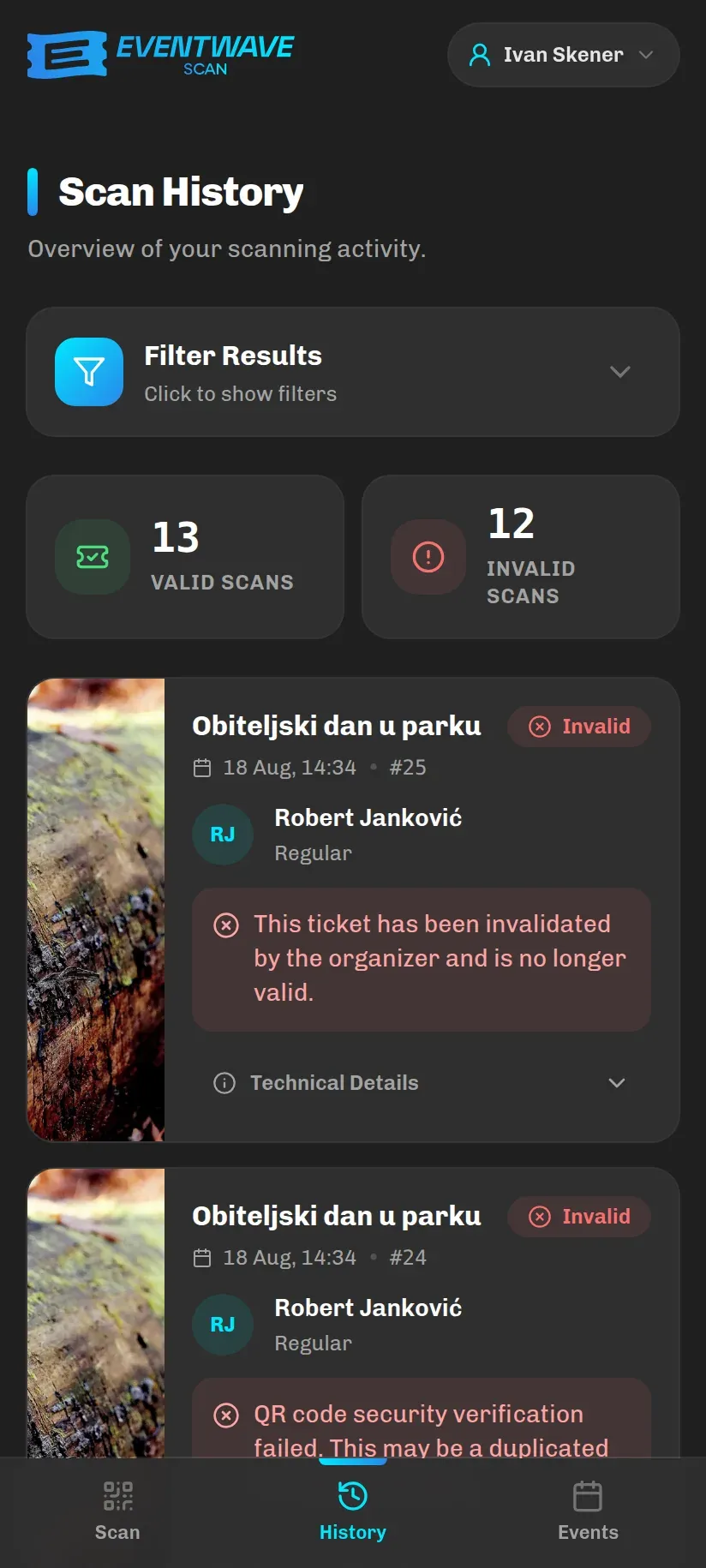
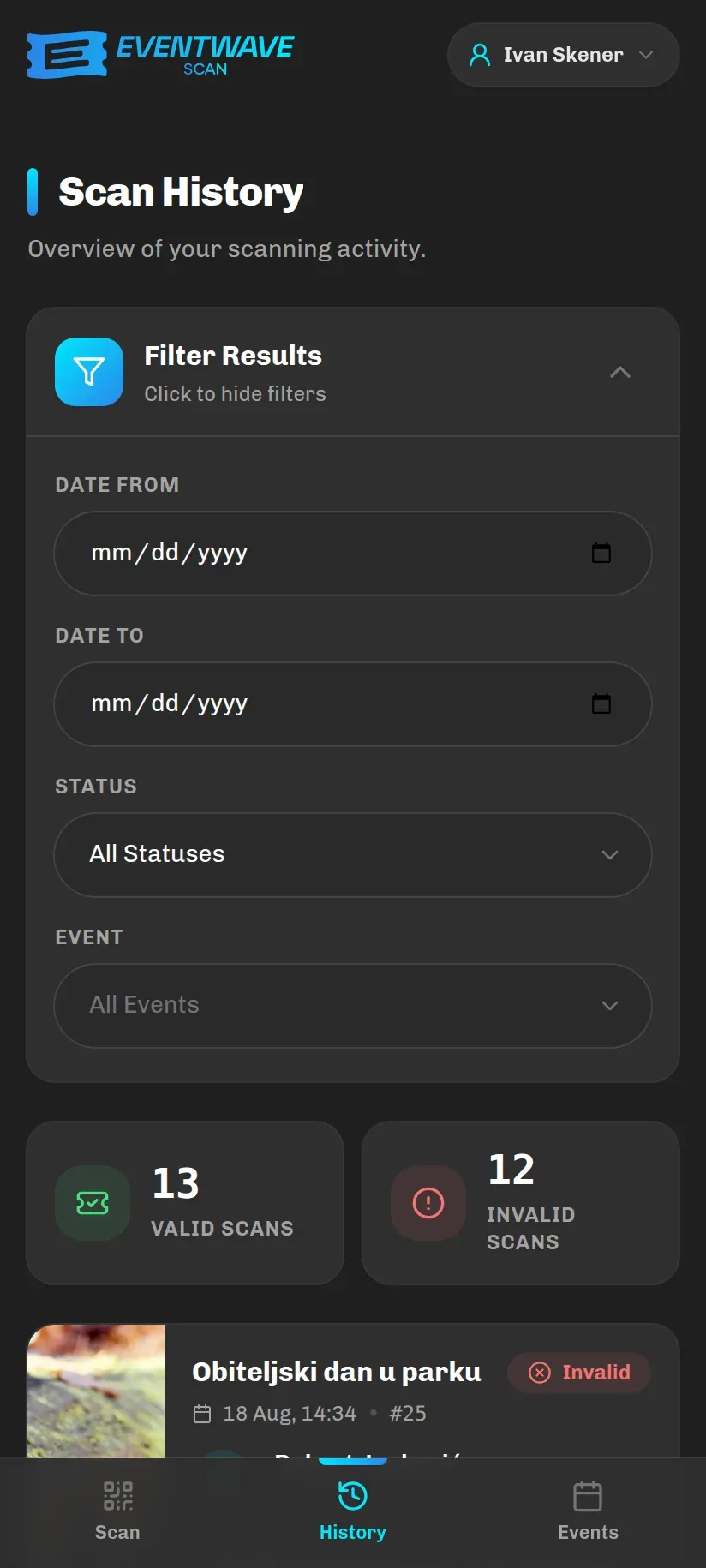
At the top are two counters for the selected filter:
- Valid Scans: successful entries,
- Invalid Scans: recorded rejections.
(Successful exits are in neither counter.)
Each row contains: the event’s poster and name, the time, the record’s sequence number, the outcome label (Valid in green, Exit in blue, Invalid in red), the attendee’s initials and name, and the ticket type. For rejections, the reason is shown too. If nothing matches the selected filters, it says “No Scan Records Found”.
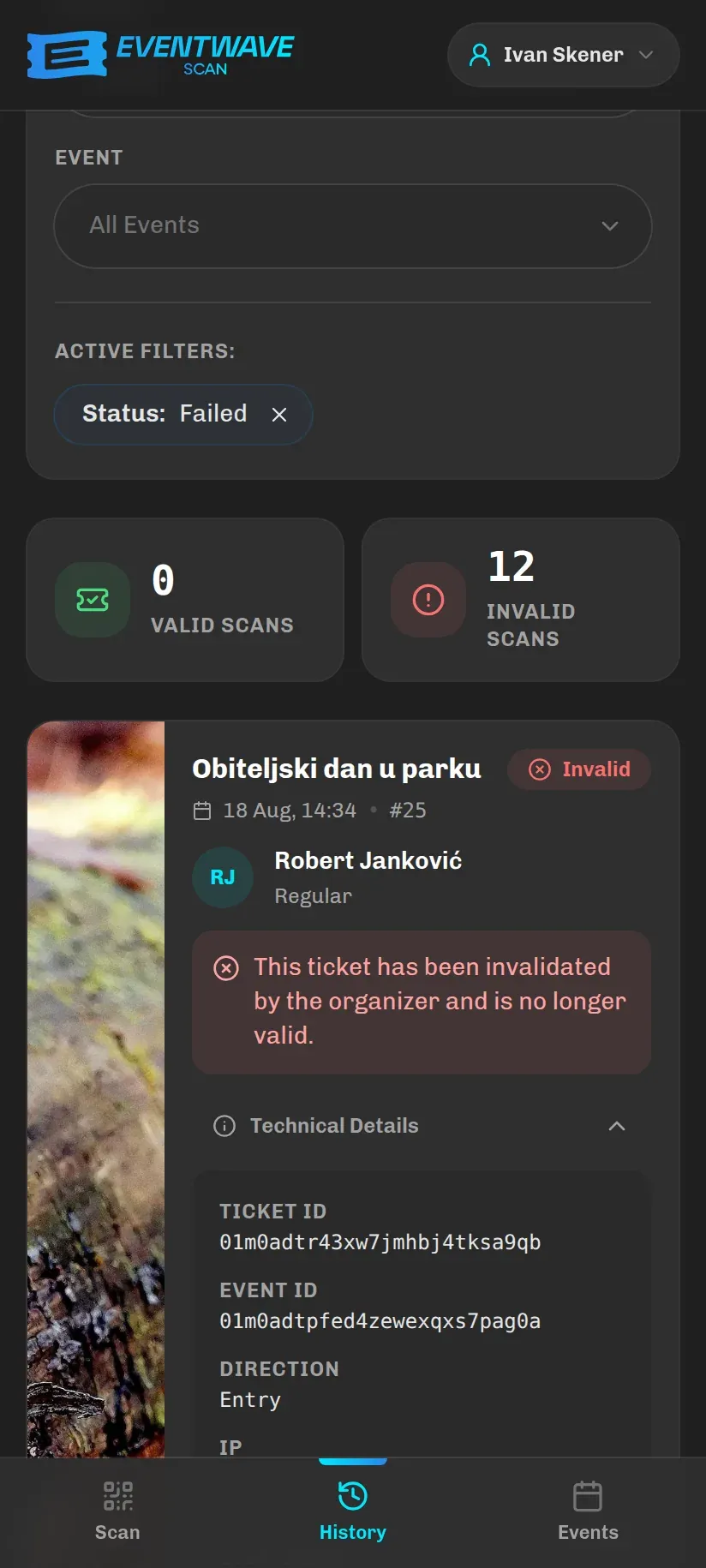
Tapping Technical Details reveals: Ticket ID, Event ID, Direction (entry/exit), the IP address, Scanner (name), Location (coordinates, if you allowed location access) and Device (browser). These details help support resolve disputed situations.
Filters
Section titled “Filters”The Filter Results card offers:
- Date From / Date To: whole days,
- Status: All Statuses / Success / Failed,
- Event: a searchable dropdown of the events you are currently added to.
Active filters are shown as chips; Clear All removes them.
What the history does NOT show
Section titled “What the history does NOT show”- Other scanners’ scans: the history is tied to your account; the shared view is the event statistics (below).
- Rejections where no ticket was found: the Ticket Not Found, Unauthorized Scanner and Invalid QR Format results are not recorded at all, so they appear neither in the list nor in the “Invalid Scans” counter.
- A repeat scan within 30 seconds (“Already scanned moments ago”): only the first, real scan is recorded.
- Events you have since been removed from: the history shows only events you are currently added to as a scanner.
Event statistics
Section titled “Event statistics”On the Events tab, tap an event. The numbers do not refresh on their own; use the Refresh statistics button:
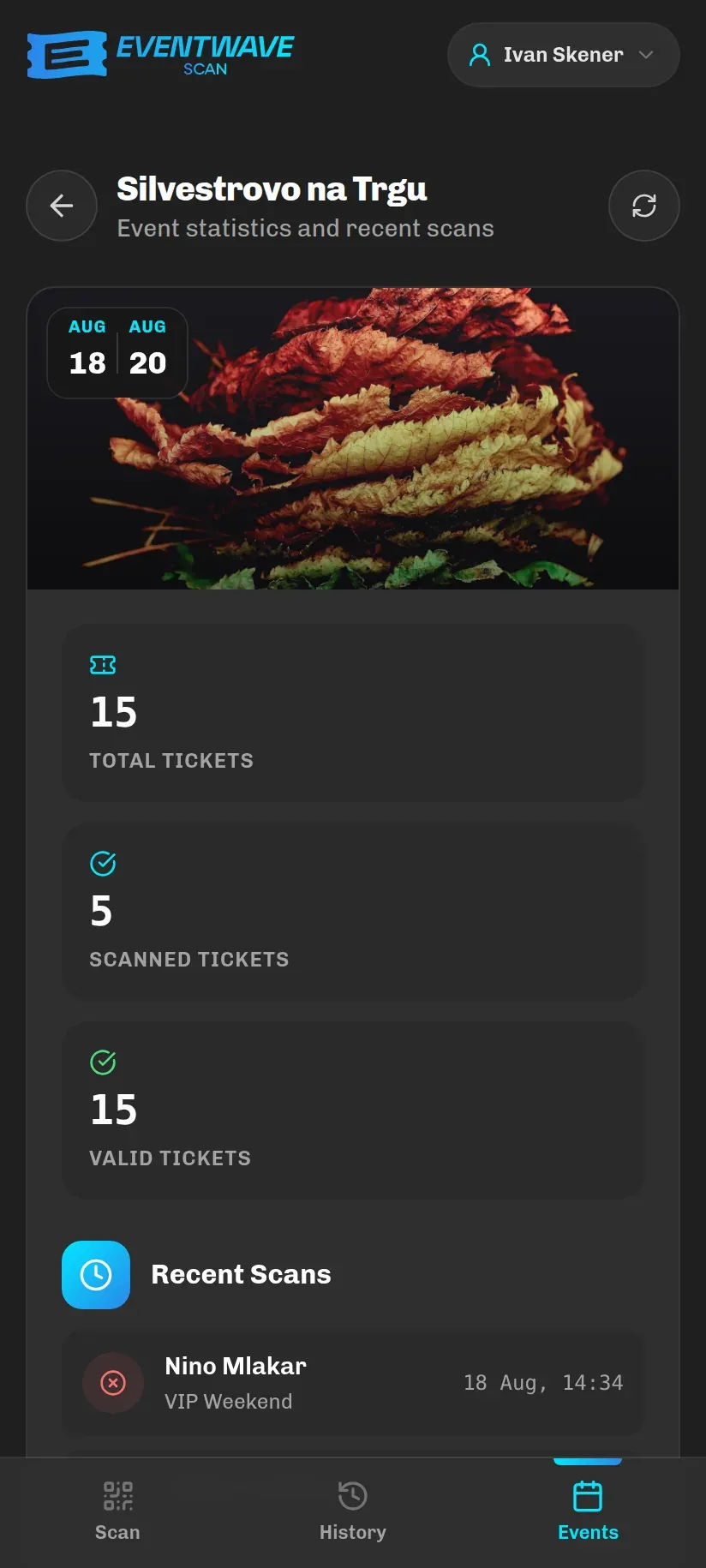
- Total Tickets: all tickets issued,
- Scanned Tickets: how many have entered at least once,
- Valid Tickets: how many have not been invalidated,
- Currently Inside: only for events with re-entry,
- Recent Scans: the last 10 scans by all scanners: attendee name, ticket type, time and outcome (green entry, blue exit, red rejected). Three are shown; “View All (N)” opens the rest. The scanner’s name is not shown here; searching by scanner is only possible in your own History.
The organizer has more detailed statistics (sales, revenue, peak entry times, per-scanner performance) on eventwave.hr; see Statistics and reports.
When several devices scan the same event
Section titled “When several devices scan the same event”- Any number of people can scan at the same time; there is no “device registration” and no door assignment.
- A double entry with the same ticket is impossible: the first device to reach the server wins, every other one gets red with the Other device label.
- Every scan is recorded against the logged-in account, and the “This device”/“Other device” label really compares accounts. If several people share a phone, each shift should log out and log in with their own account, because otherwise neither the history nor those labels will be accurate.