
Scan results
Every scan ends with one of the messages below. The color tells you the kind of outcome (green/blue = pass, red = rejected, yellow = no verdict), the text the reason. The “Disappears” column also says how long a message stays: results dismiss themselves after 3 s, while rejections that show ticket details stay until you tap them (at most 15 s), so you have time to read the context. Green, blue and yellow results can’t be dismissed early by tapping.
Green and blue: all good
Section titled “Green and blue: all good”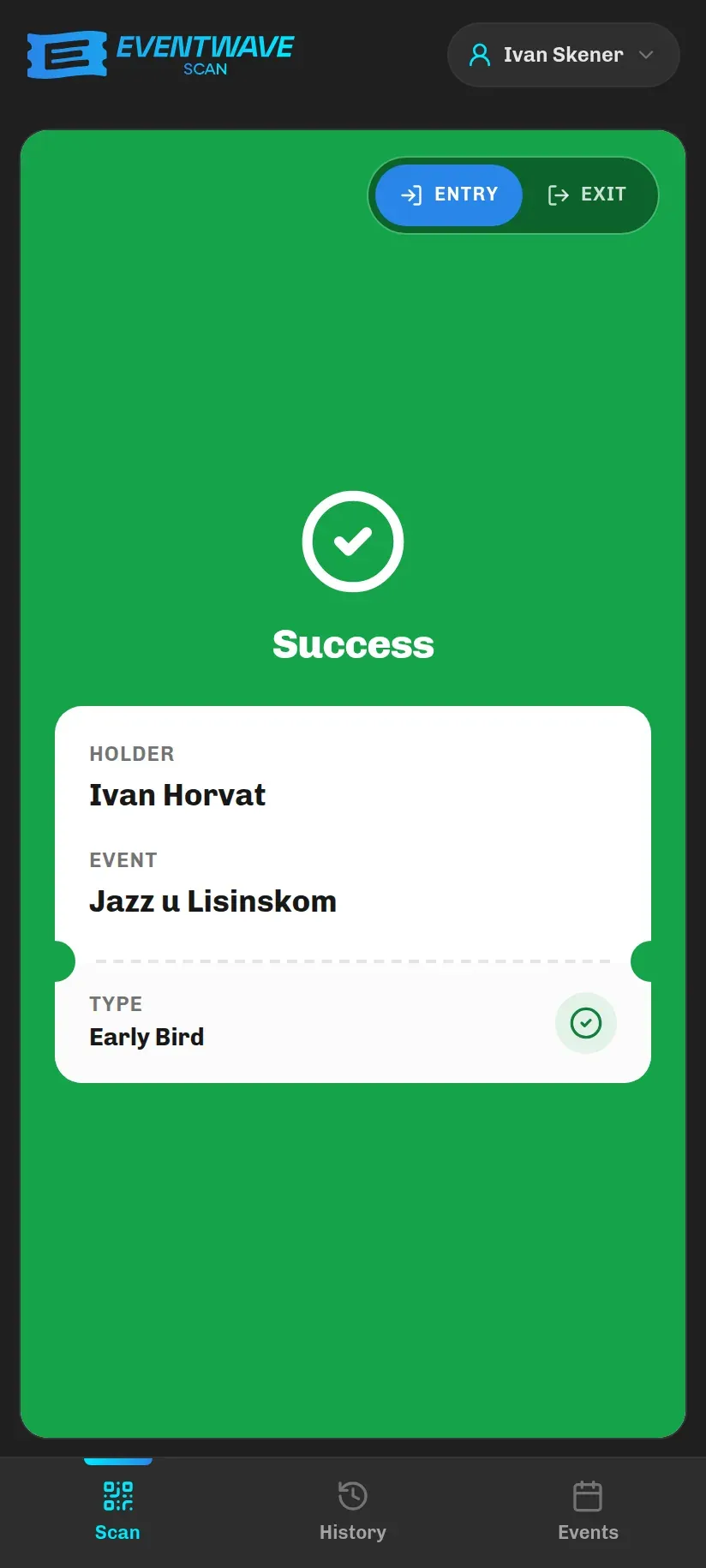
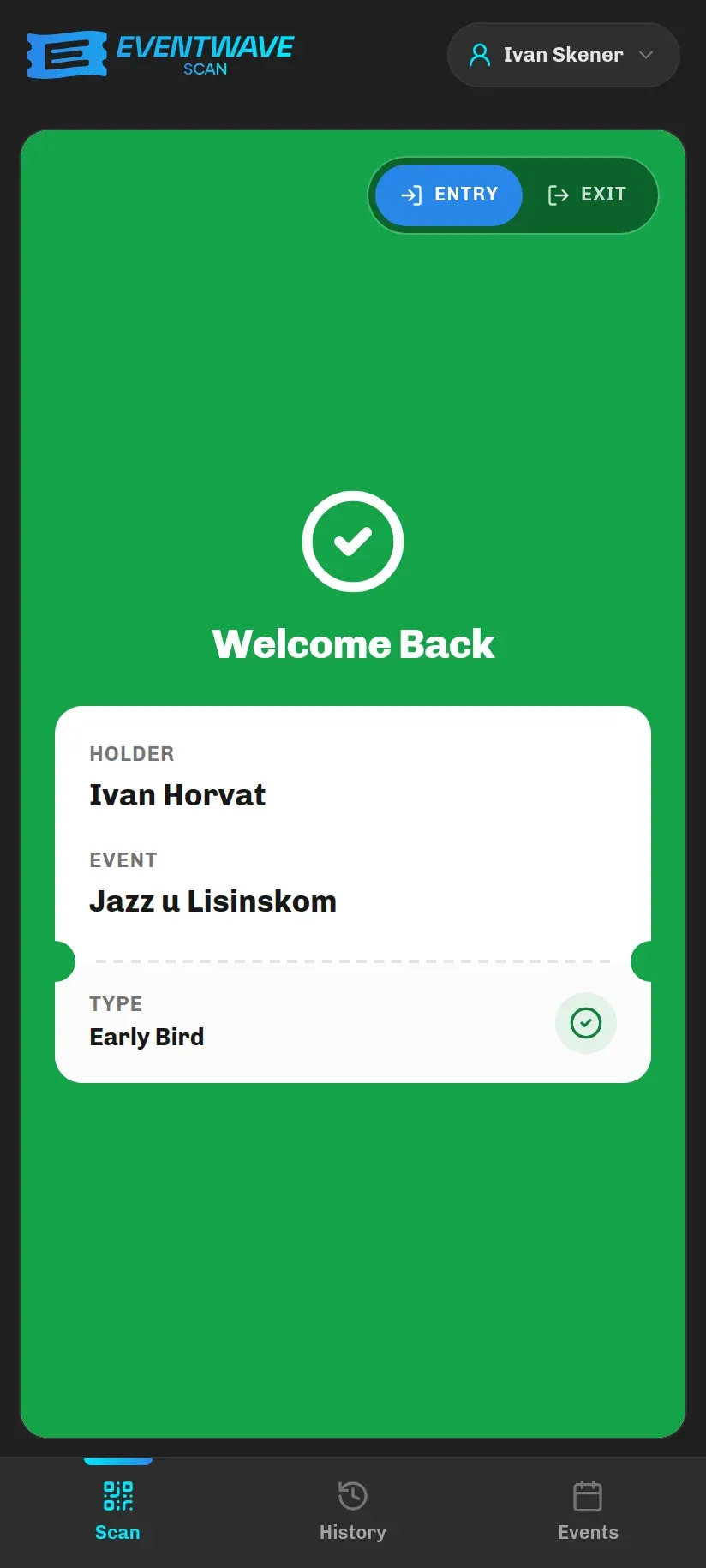
| Message | When it appears | What to do | Disappears |
|---|---|---|---|
| Success | Valid ticket, first entry. | Let the attendee in. | on its own (3 s) |
| Welcome Back | The event allows re-entry; the attendee was inside, was scanned on exit and is now returning. | Let the attendee in. | on its own (3 s) |
| Checked Out | The toggle is on Exit and an attendee who was inside is leaving. Shown in blue. | Let the attendee out. Their ticket is valid for entry again. | on its own (3 s) |
| Success + “Already scanned moments ago” | The same ticket was successfully scanned by this same phone less than 30 seconds ago in the same direction (e.g. twice in a row because of a slow connection). No second entry is recorded. | Nothing; it was a repeat, not another person. | on its own (3 s) |
Red: ticket rejected
Section titled “Red: ticket rejected”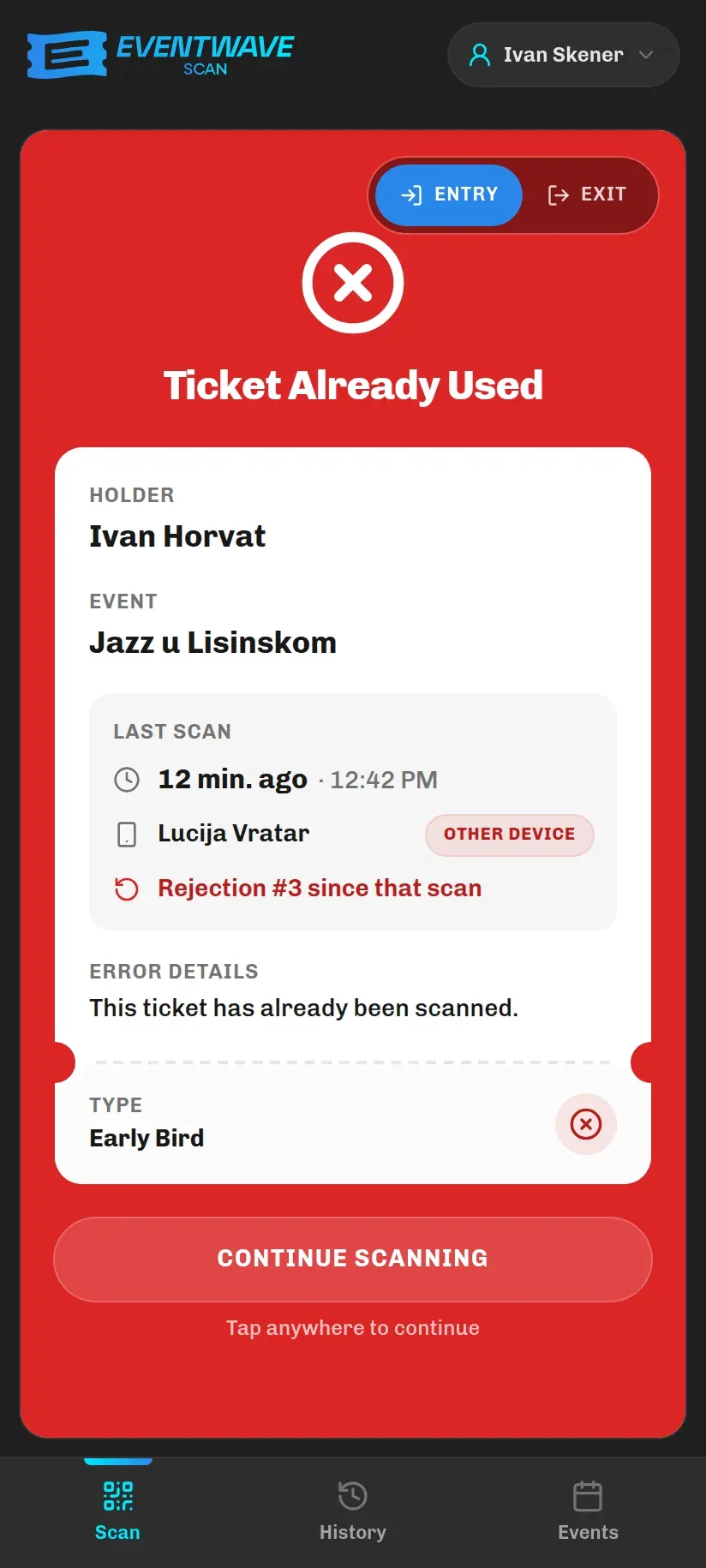
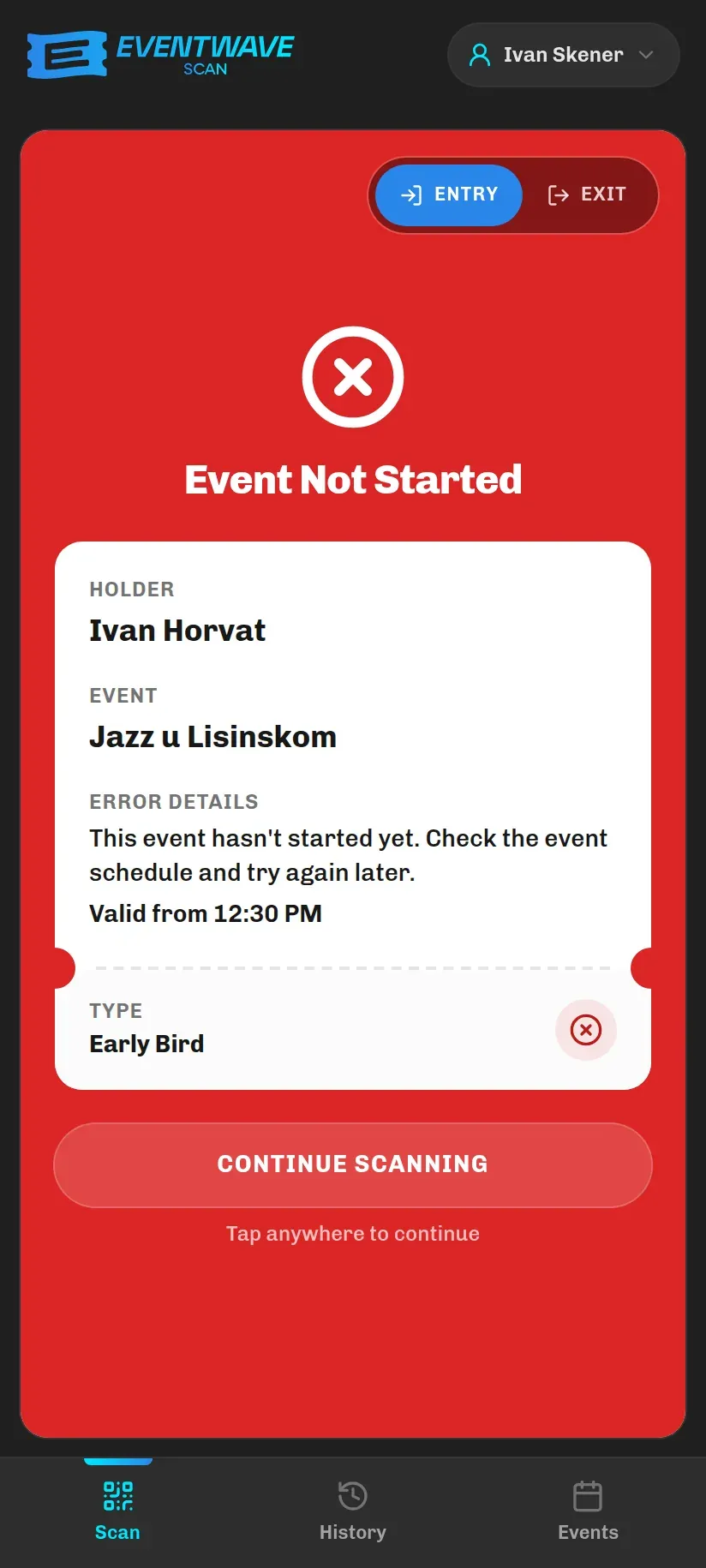
| Message | Why | What to do | Disappears |
|---|---|---|---|
| Ticket Already Used | An event without re-entry, and this ticket has already been admitted once. The card shows when and from which account it was scanned. | See Deciding on “already used” below. | on tap (up to 15 s) |
| Already Inside | An event with re-entry; according to the records the attendee with this ticket is currently inside (was not scanned on exit). | If the person really left without being scanned, scan them on Exit first, then on Entry. If a different person is in front of you with the same ticket, someone is sharing the code. | on tap (up to 15 s) |
| Not Inside | The toggle is on Exit, but according to the records the ticket is not inside (never entered or was already scanned on exit). | Check whether the toggle was accidentally left on Exit. If the person is leaving and was never scanned on entry, just let them out. | on tap (up to 15 s) |
| Ticket Invalidated | The organizer or Eventwave invalidated this ticket. The card may also say “Marked as used by the organizer”. | Don’t let them in; refer the attendee to the organizer. | on tap (up to 15 s) |
| Event Not Started | The ticket is valid only from the event’s start; the date and time are shown (“Valid from…”). | Ask them to wait until that time. If the organizer wants earlier admission, they have to move the event’s start time. | on tap (up to 15 s) |
| Event Ended | The event’s end time has passed; the date and time are shown (“Valid until…”). | Contact the organizer; the end time can be extended in the event settings. | on tap (up to 15 s) |
| No Re-entry | The toggle is on Exit, but the event does not allow re-entry. | Put the toggle back on Entry. Exits are not recorded at this event. | on tap (up to 15 s) |
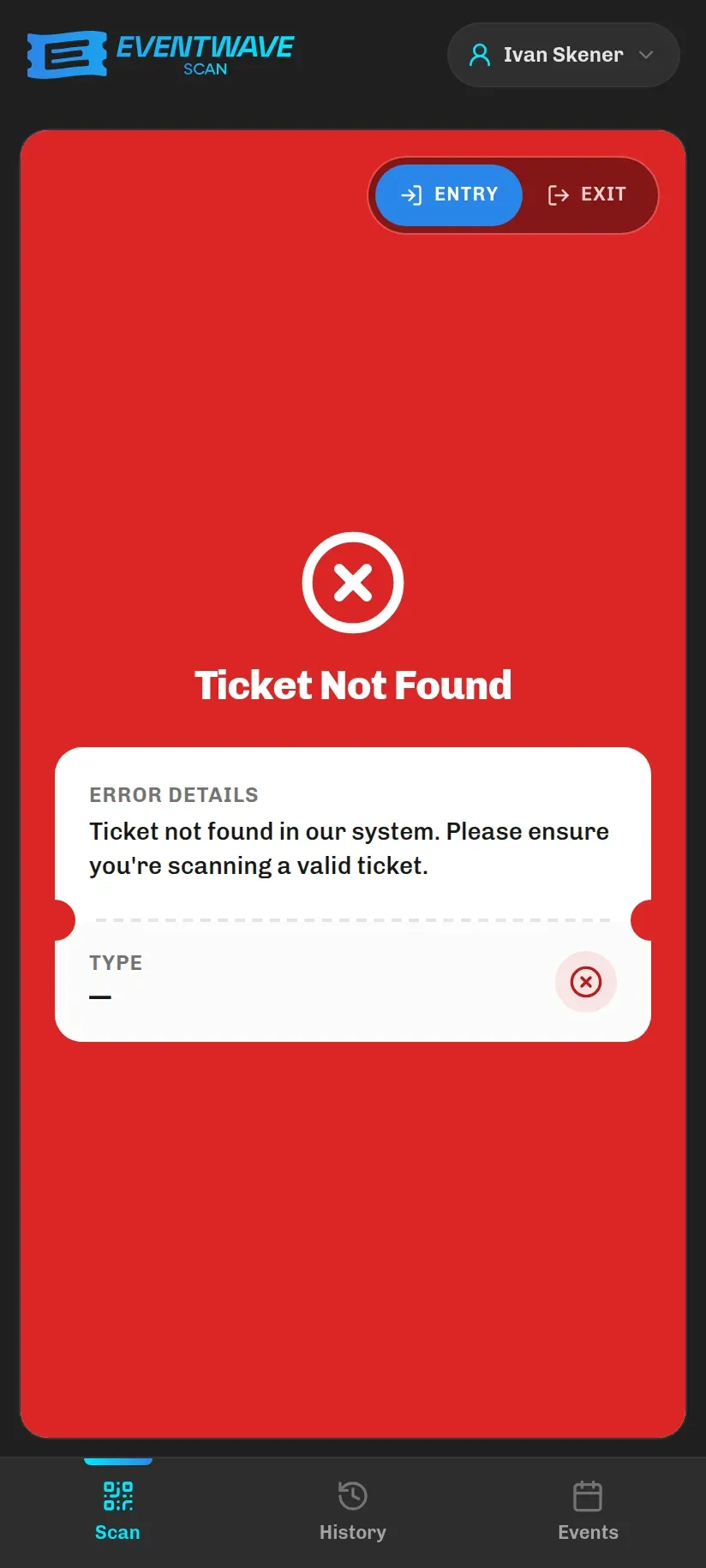
| Ticket Not Found | The code looks like an Eventwave ticket but does not exist in the system. Most often: the order was never paid (tickets are issued only after payment) or the code is forged/damaged. | Ask the attendee to show the “Your tickets for …” email. If there is none, the payment didn’t go through, so refer them to the organizer or to [email protected]. | on its own (3 s) |
| Invalid QR Format | The scanned code is not an Eventwave ticket (e.g. a QR code from a receipt, a web address, another platform’s code). Checked locally, without contacting the server. | Ask for the real ticket. | on its own (3 s) |
| Unknown Error | An unexpected error during verification. | Scan again; if it keeps happening, contact support. | on its own (3 s) |
The rule to remember: every rejection that shows ticket details on the card waits for your tap: at the bottom it says “Tap anywhere to continue” with a Continue scanning button. Rejections without ticket details (not found, invalid format, unknown error) disappear on their own after 3 s.
Yellow: no result
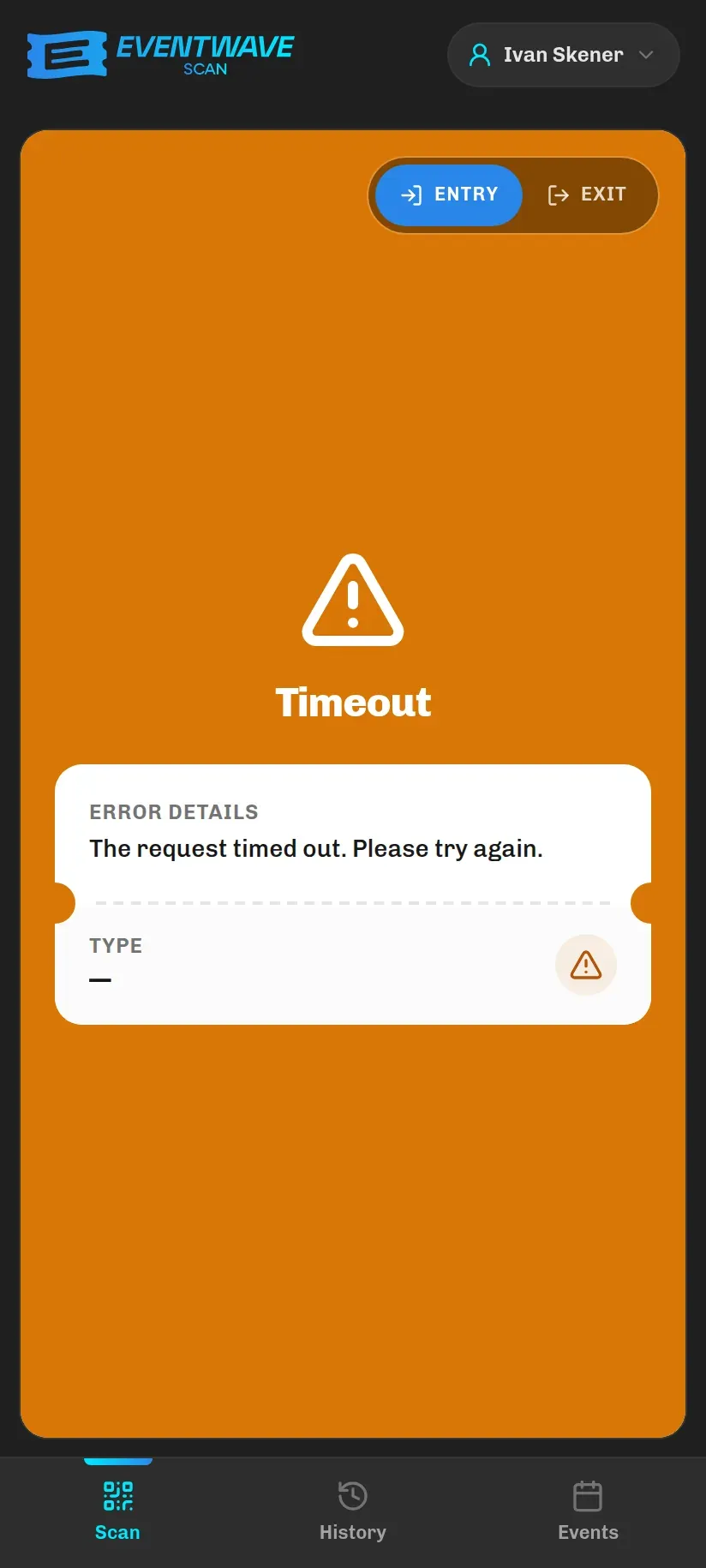
Section titled “Yellow: no result”Yellow is not a rejected ticket. It means the check never reached the server, the answer never came back, or your account lacks the permission to scan that event — so no verdict was rendered on the ticket:
| Message | Meaning | What to do | Disappears |
|---|---|---|---|
| Timeout | The server didn’t respond within 8 seconds (weak connection). | Scan the same ticket again. If the first scan did go through after all, you’ll get green with the note “Already scanned moments ago”, with no false rejection. | on its own (3 s) |
| Network Error | No internet connection. | Check Wi-Fi/mobile data and try again. | on its own (3 s) |
| Server Error | Eventwave responded with an error (e.g. a brief interruption during maintenance). | Wait a few seconds and try again. If it persists, contact support. | on its own (3 s) |
| Session Expired | You have been logged out (e.g. after 2 hours of inactivity). | The app will return you to the login screen; log in and continue. | on its own (3 s) |
| Unauthorized Scanner | The ticket may be perfectly valid, but your account has not been added as a scanner for that event, so the server never judged it. Either it’s a ticket for a different event, or the organizer hasn’t added you yet (or removed you). | Check the event name on the ticket. If it is your event, the organizer needs to add you to the scanner list. | on its own (3 s) |
| Unauthorized Access | Your account’s scanning permission has been revoked in the meantime. | The app re-checks your account and returns you to the login screen; ask the organizer to add you again. | on its own (3 s) |
What the result card shows
Section titled “What the result card shows”Below the title, a ticket card appears with these fields:
- Holder: the name on the ticket (the buyer, or the individual attendee with personalized tickets),
- Event: the event name,
- Type: the ticket category (e.g. VIP, Early Bird),
- for rejections, an Error Details field: the explanation and, where it makes sense, details of the last scan (see below).
Deciding on “already used”
Section titled “Deciding on “already used””Rejections that show ticket details stay on screen until you tap them (at most 15 s). The most important such case is Ticket Already Used (plus Already Inside and Not Inside); the card then also shows a Last scan block (Last exit for exits):
- when: how long ago (e.g. “12 min ago”) and the exact time,
- who: the scanner’s name with a This device label (grey) or Other device (red, a warning),
- “Marked as used by the organizer” if the ticket was marked manually, without being scanned,
- “Rejection #N since that scan” if this is already the second/third attempt with the same code since it was used.
How to read it (always according to the organizer’s rules):
| Situation | What probably happened | Recommendation |
|---|---|---|
| Same name, This device, less than 2 min ago | You (or a colleague on your account) just admitted them / the attendee stepped back through | Let them in. |
| Same name, 10 to 40 min ago | The attendee went out, and the event has no re-entry | The organizer’s call; usually not admitted without an agreement. |
| Other device, long ago, the name doesn’t match the person, multiple rejections | A forwarded or copied ticket | Don’t let them in. |
| Same name, recently, the person is showing the same PDF page for someone else | A family/group showing one ticket for everyone | Point them to the other pages of the PDF; each person has their own code. |
Once you’ve read it, tap anywhere (or the Continue scanning button) and the scanner carries on.